
Hand off a live Sticklight project to your client

Building a website is the satisfying part. Handing it off to a client? Historically, much less so.
For most freelancers, web creators, and digital agencies, the traditional website handoff process is full of friction. Delivery usually meant zipping up code exports, sharing sensitive passwords, or rebuilding the entire site inside a client’s separate account. Every single path loses something along the way—control, code quality, billable time, or even the client relationship itself.
We built Project Transfer to solve the headache after the build. With just one email invitation, you can transfer a live Sticklight project, its custom domain, and its active hosting straight from your workspace into your client’s, instantly, and with zero rebuilds or shared passwords.
What is Sticklight Project Transfer?
Project Transfer is a formal, invitation-based handoff mechanism between two distinct Sticklight workspaces. You send an email invite, your client accepts, and the entire project, along with its published domain, hosting setup, and version history, moves seamlessly into their workspace as one atomic unit.
Once the transfer is complete:
- Permissions reset: Your client’s team takes over admin control.
- Integrations disconnect: Third-party connections safely reset for security.
- Billing shifts: All future AI credits and hosting costs bill directly to their account.
Important Note: This is not just sharing access or granting your client a guest seat in your agency workspace. Actual ownership changes hands. If you need a backup for your portfolio, you can save a read-only snapshot in your workspace before sending, but the live, operational project belongs entirely to them.
Who Needs This Feature?
If your agency or freelance workflow involves delivering a live digital product to a non-technical owner, Project Transfer was built for you:
- Digital Agencies: Seamlessly pass completed client builds off your internal staging environments to client accounts.
- Freelance Web Creators: Hand over full control of domains, hosting, and code without writing multi-page instruction manuals.
- In-House Teams and Contractors: Move finished sub-projects or microsites into corporate master accounts smoothly.
How to Transfer a Sticklight Project (Step-by-Step)
Initiating a Sticklight project handoff takes under two minutes. You can start the flow from two places: the project card on your homepage, or Project Settings inside Studio.
- Enter the New Owner Email: Input the exact email address of the client or stakeholder who should receive full ownership of the project.
- Configure Your Handoff Settings:
- Clear Chat History (Toggle): Enabled by default so your internal AI prompts and draft conversations do not travel with the site.
- Save a Workspace Copy (Toggle): Disabled by default. Turn this on if you want to keep an identical portfolio snapshot in your own account.
- Review the Handoff Summary: Before the invitation goes out, Sticklight displays a clear audit screen outlining exactly what changes on your client’s side (permission resets, integration disconnects, and billing shifts).
- Send the Invitation: Click send. The recipient receives an automated notification, and the transfer enters a pending state.
Pro Tip: Your project stays fully editable in your workspace while the transfer is pending. You can continue polishing the site, or even revoke and resend the invitation at any time before they accept.
What the Client Sees During the Handoff
We designed the receiver experience to be totally painless for your clients:
- The Email Invite: Your client receives a branded email containing a secure acceptance link.
- Account Creation or Sign-In: They log in using the invited email address (or quickly register a new account if they are new to Sticklight).
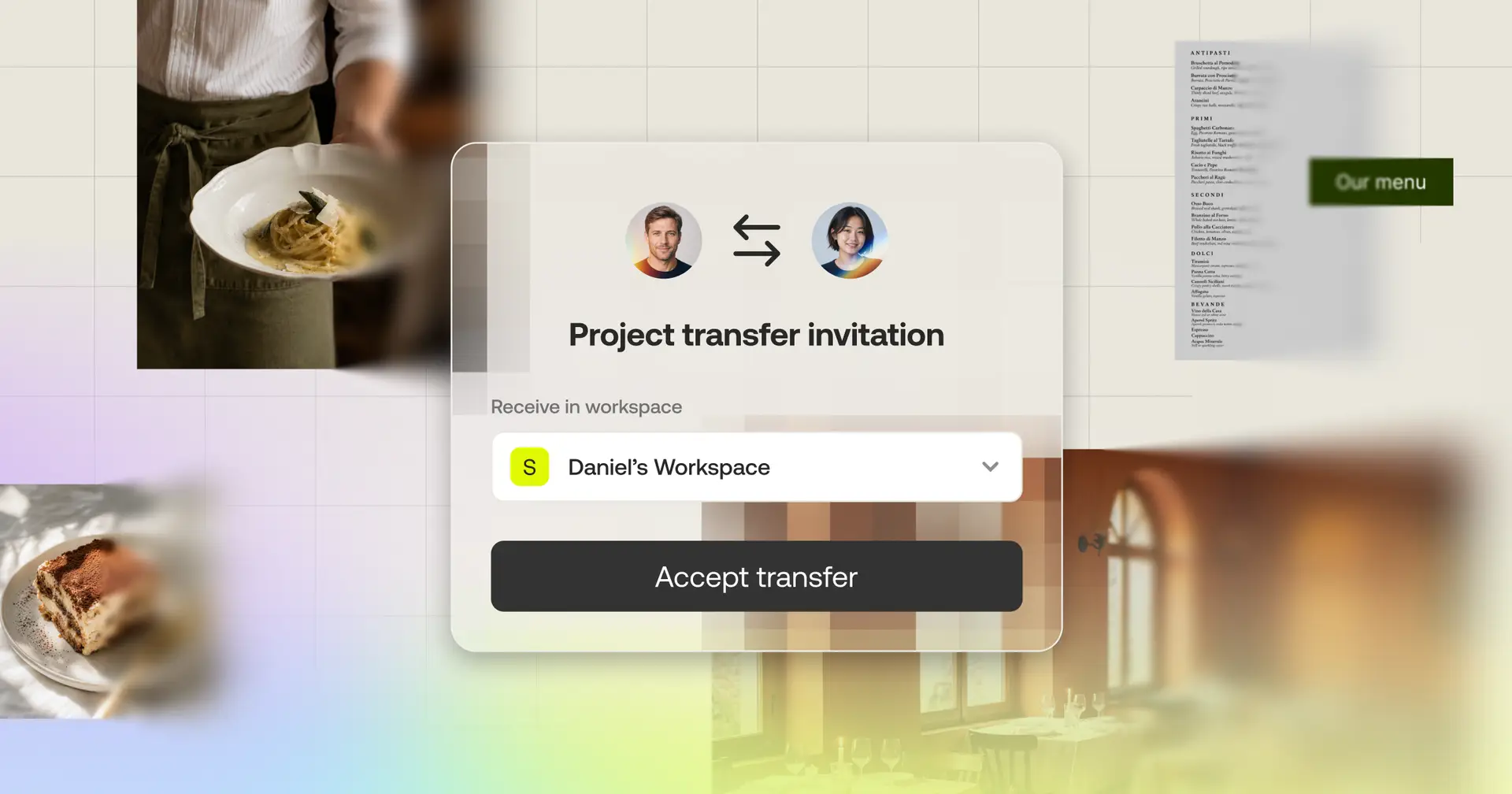
- Workspace Selection: Sticklight guides them to select which workspace receives the project. If they do not have a Sticklight Pro workspace yet, they can upgrade inline during the acceptance flow.
- Automated Migration: Once confirmed, a real-time progress bar displays the site moving over, landing them straight into their new live dashboard upon completion.
What Happens When Your Client Accepts
Transparency during the handoff process ensures everyone knows exactly where assets and access stand post-transfer. Here is how ownership breaks down the second your client hits accept:
| Category | Transferred Details |
|---|---|
| Moves to Client | The complete build, code base, version history, custom domain, and active hosting. |
| Resets for Security | Workspace roles reset, and third-party integrations (like GitHub) disconnect so your API keys stay secure. Chat history also clears unless you specifically chose to keep it. |
| Shifts Billing | All future hosting fees and AI credit usage immediately bill to your client’s Sticklight account. |
Once the transfer completes, your agency work is officially delivered. You will not have to worry about lingering hosting fees on your card or client team members accidentally browsing your workspace.
Staying on after the handoff
Handing off ownership does not mean walking away. You can stay on the transferred project as a collaborator, which is the standard pattern when the relationship continues past launch. Keep building. Keep maintaining. Ship the retainer work from the same project you delivered.
If you also toggled “save a copy” at the send step, a snapshot stays in your workspace as a reference or a portfolio piece.
Checklist: 4 best practices for a frictionless handoff
To prevent support tickets and ensure a smooth delivery day, follow this quick checklist:
- ☐ Prep your client for integrations: Remind your client that GitHub repositories and OAuth connectors disconnect automatically upon transfer for security. They will need to reconnect them from their side.
- ☐ Check your chat history settings: Keep “Clear Chat History” turned ON to wipe sensitive prompt data, or turn it OFF if the client specifically requested your historical AI context.
- ☐ Toggle Save a Copy for portfolio use: If you want to showcase the site in your case studies, make sure to enable this option before clicking send.
- ☐ Verify Pro status on both accounts: Ensure both your workspace and your client destination workspace are on the Pro Plan (clients can easily upgrade during the transfer acceptance process).
Requirements checklist
Before starting your Sticklight project transfer, make sure you meet the following prerequisites:
- Pro Subscription: Both sending and receiving workspaces require an active Sticklight Pro plan.
- Admin Rights: You must be designated as a workspace Owner or Admin to initiate a transfer.
- 7-Day Expiration: Unaccepted invitations automatically expire after 7 consecutive days.
- Matching Email: The client must sign in with the exact email address to which the invitation was sent.
Ready to streamline your next client delivery?
Open the project you are preparing to deliver. Navigate to the project card, click Transfer, and follow the 4-step wizard. Project delivery done properly, fast, secure, and stress-free.
Frequently Asked Questions
Does transferring a Sticklight project cause website downtime?
No, there is zero downtime. Your published domain, SSL certificates, and active hosting shift immediately to the new workspace without interrupting live site traffic or causing outages.
Do I lose access to my Sticklight project after transferring it to a client?
Not if you save a copy or stay on as a collaborator. While main ownership shifts to your client, checking “Save a copy” keeps a snapshot in your workspace. Your client can also keep you added as a collaborator for ongoing maintenance.
What happens if my client does not have a Sticklight account yet?
They can create an account during the handoff. Clicking the invitation link prompts them to sign up, set up a workspace, and upgrade to Pro directly within the acceptance flow.
Why do GitHub and third-party integrations disconnect during a project transfer?
They disconnect for security and key privacy. Automatic disconnects prevent your personal or agency API keys and OAuth tokens from remaining tied to an account you no longer own. Your client can re-authenticate their own accounts post-transfer.
Can I edit a Sticklight project while the transfer invitation is pending?
Yes. Your workspace is not frozen while an invitation is pending. You keep full editing and publishing capabilities right up until the client clicks accept.
What happens if a Sticklight transfer invite expires after 7 days?
Nothing changes on your site. If the 7-day window passes without acceptance, the invitation simply expires and the live project remains securely in your workspace. You can send a new invite whenever your client is ready.
