
How to Add a Cookie Banner to Your Website in 2026

Adding a cookie banner comes down to three moving parts: a consent tool that knows which cookies and scripts your site loads, a banner that asks visitors for permission before anything non-essential runs, and a blocking mechanism that actually holds those scripts back until someone agrees. You can wire this up with a plugin, a built-in setting in your platform, or a small custom script, but the order of operations stays the same no matter which route you take.
The steps below walk through the process in a general way, so you can follow them regardless of what your site is built on.
What a cookie banner is actually doing
A cookie banner is the visible part of a bigger job called consent management. Behind the scenes, the tool scans your site for cookies and tracking scripts, sorts them into categories such as necessary, functional, analytics, and marketing, and then makes sure only the necessary ones load automatically. Everything else waits for a visitor’s decision.
The banner itself is just the interface for that decision. It needs to explain, in plain terms, what kinds of cookies you use and give a real choice, not just an accept button with no equivalent way to decline.
Steps to set one up
Most implementations follow this general sequence:
- Audit your site to find every script that sets a cookie or tracks behavior, including analytics, chat widgets, ad pixels, and embedded video.
- Pick a consent tool or plugin that matches your platform and can categorize those scripts automatically.
- Group the scripts into categories and decide which ones are truly necessary for the site to function.
- Connect each script to its category so the tool can block or allow it based on the visitor’s choice.
- Style the banner so it matches your site’s look without covering key content or blocking navigation.
- Test the setup in a private browser window to confirm tracking scripts stay off until you click accept.
Choosing an approach for your site
A plugin or add-on is the most common route for sites built on a content management system, since it usually handles scanning, categorization, and blocking without much manual setup. Some platforms also include a consent tool as a built-in feature, which can simplify things further if your needs are straightforward.
A custom build makes sense when your site has unusual tracking needs or when you want the banner’s behavior tied closely to other parts of your codebase. This route takes more development time, since you are responsible for the blocking logic yourself rather than relying on a tool that handles it automatically.
Common mistakes that undermine a cookie banner
A cookie banner only does its job if the blocking actually happens before consent, not after. A frequent error is installing the banner but leaving analytics or ad scripts hardcoded elsewhere on the page, so they fire regardless of what the visitor chooses.
Other issues to watch for include a reject option that is harder to find than accept, no record kept of when and what a visitor agreed to, and a banner that sits on top of navigation or checkout buttons on smaller screens. It is also worth revisiting your setup whenever you add a new tool or widget, since that new script needs to be categorized too.
Where Sticklight fits
Sticklight is the vibe-coding platform built for professional web creators who want to turn a prompt into a production-ready result, whether that is a website, an app, a dashboard, a CMS, or an internal tool. Instead of stitching together a plugin, a script, and manual testing, you can describe the consent flow you want and get working, structured output you can refine from there.
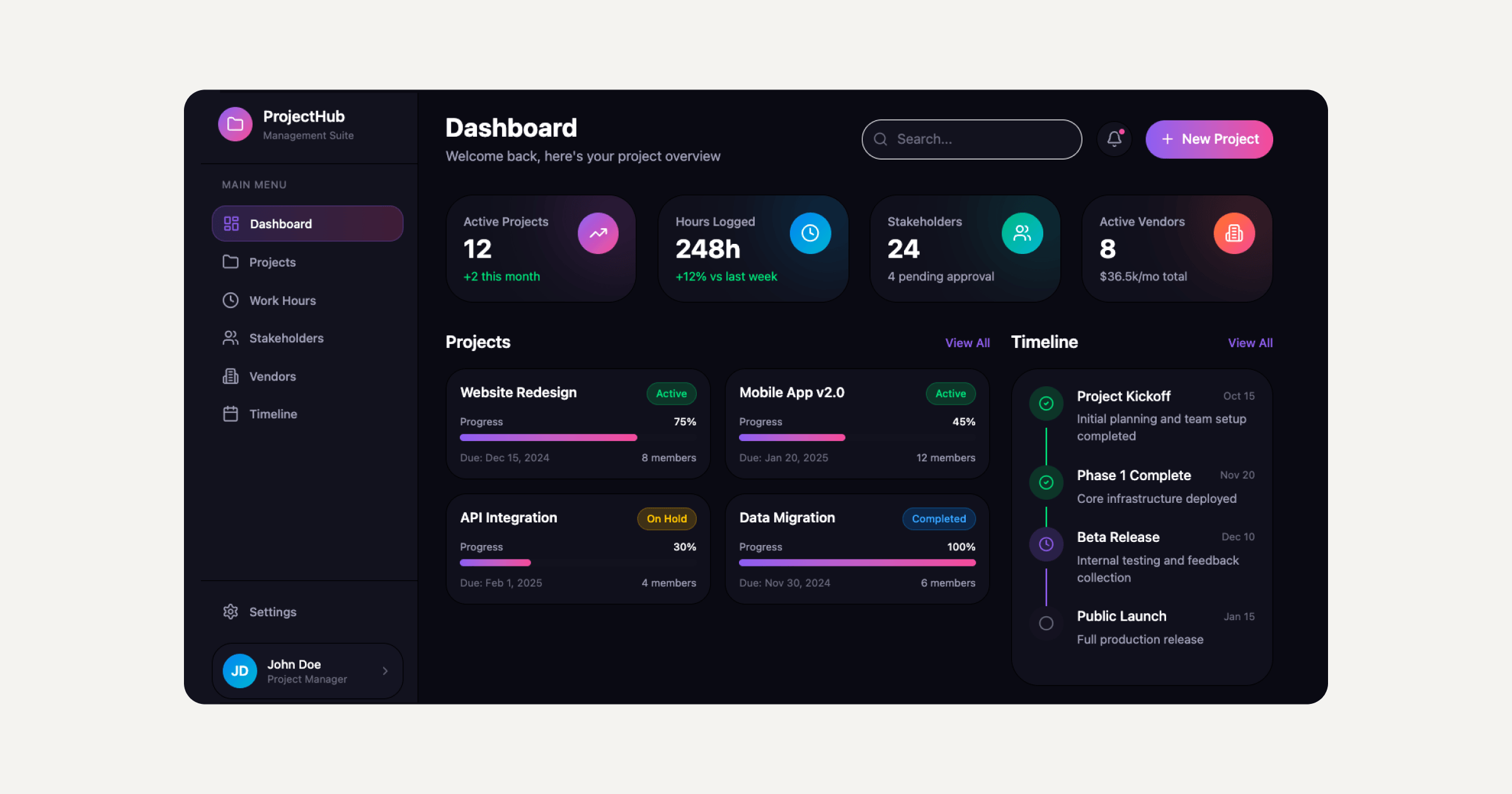
That same approach extends past a single banner. Because Sticklight is built for full-stack creation, the same prompt-driven process that sets up cookie consent can carry into the rest of a site’s build, from layout to backend logic to the tools that keep it running.
WordPress and Elementor remain solid ground for building and extending sites, and Sticklight adds another way to work on top of that foundation, useful when you want to move from a prompt straight to something functional.
Frequently asked questions
Do I need a cookie banner if my site only uses analytics?
In most cases yes, since analytics scripts typically set cookies or collect identifiers that count as tracking, so visitors should still get a choice before those scripts run.
What is the difference between necessary and non-necessary cookies?
Necessary cookies keep core functions working, such as remembering items in a cart or keeping a visitor logged in, while non-necessary cookies cover things like analytics, marketing, or embedded media that the site can run without.
Can I just use a simple accept button instead of a full banner?
A single accept button without an equally easy way to decline does not give visitors a real choice, so most consent tools pair accept with a reject or manage-preferences option instead.
How do I know if my banner is actually blocking scripts?
Open your site in a private browser window and check the network activity before clicking accept. If analytics or marketing scripts load before that click, the blocking is not set up correctly.
Do I need to update the banner when I add a new tool to my site?
Yes, any new script that sets a cookie or tracks visitors needs to be added to the right category in your consent tool, otherwise it can end up loading without a visitor’s permission.
Built by the Elementor team. Powered by Claude.
Let it glow.
