
How to Add Dark Mode to Your Website in 2026

Adding dark mode to your website means giving visitors a second color scheme, usually a dark background with light text, that they can switch to manually or that loads automatically based on their device settings. The actual work happens almost entirely in CSS, with a small amount of JavaScript to remember which mode a visitor picked last time.
Done well, it takes an afternoon: define your colors as variables, detect the visitor’s system preference, add a toggle, and store the choice so it sticks between visits.
Start with color variables, not two separate stylesheets.
The most common mistake is writing a whole second stylesheet for dark mode and trying to keep both in sync by hand. Instead, define your colors once as CSS custom properties on the root element, things like background, text, border, and link color, then reference those variables everywhere instead of hardcoding hex values. When you want to switch themes, you only change the variable values, not every rule that uses them. This also makes it far easier to add a third theme later, or to tweak a single color across the whole site in one place.
- Group variables by purpose, such as surface color, text color, and accent color, rather than by literal color name.
- Keep enough contrast between text and background in both themes so body copy stays easy to read.
- Test your images, icons, and borders in dark mode too, since a white icon on a white card can disappear when the background flips.
Detect the visitor’s system preference automatically.
Most modern browsers expose whether a visitor has chosen a dark or light theme at the operating system level, and CSS can read that directly with a prefers-color-scheme media query. Wrapping your dark variable values in that query means a visitor who already runs their phone or laptop in dark mode sees your site the same way the moment they land, with no click required. This is the right default for most sites, since it respects a choice the visitor already made elsewhere rather than asking them to make it again.
Add a manual toggle for people who want to override it.
System preference is a good default, but some visitors want your site to look one way regardless of their device, or they are on a shared computer set up for someone else. A small toggle, usually a sun or moon icon in the header, lets them pick explicitly. When clicked, it should swap a class or attribute on the page’s root element that your CSS variables key off, and JavaScript should save that choice in local storage so it persists on the next visit instead of resetting every time.
Avoid the flash of the wrong theme on page load.
A common rough edge is a brief flash of the light theme before dark mode kicks in, which happens when the theme-setting script runs after the page has already started painting. The fix is to run a short script that reads the saved preference and applies the theme class before the rest of the page renders, placed early in the page rather than at the bottom. It only needs a few lines, but placement matters more than length here.
Check contrast and images before calling it done.
Once both themes are wired up, go through your pages the same way a visitor would rather than only checking the toggle works. Confirm text still meets accessible contrast levels against its new background, check that form fields and buttons are easy to see, and look for any image with a transparent background that was designed to sit on white. Photos, screenshots, and colored charts often need their own handling in dark mode, either a subtle border, a slight brightness adjustment, or a dedicated dark version for graphics that were built specifically for a light page.
Where Sticklight fits
Sticklight is the vibe-coding platform built for professional web creators, and this kind of build, color variables, a system-preference check, a toggle with memory, and a fix for the loading flash, is exactly the sort of task you can describe in plain language and have generated as production-ready code. It does not stop at a single page either. Since Sticklight goes beyond websites and toward being a full-stack creator, the same prompt can extend the theme system into an app, a dashboard, or a small content tool that needs to match.
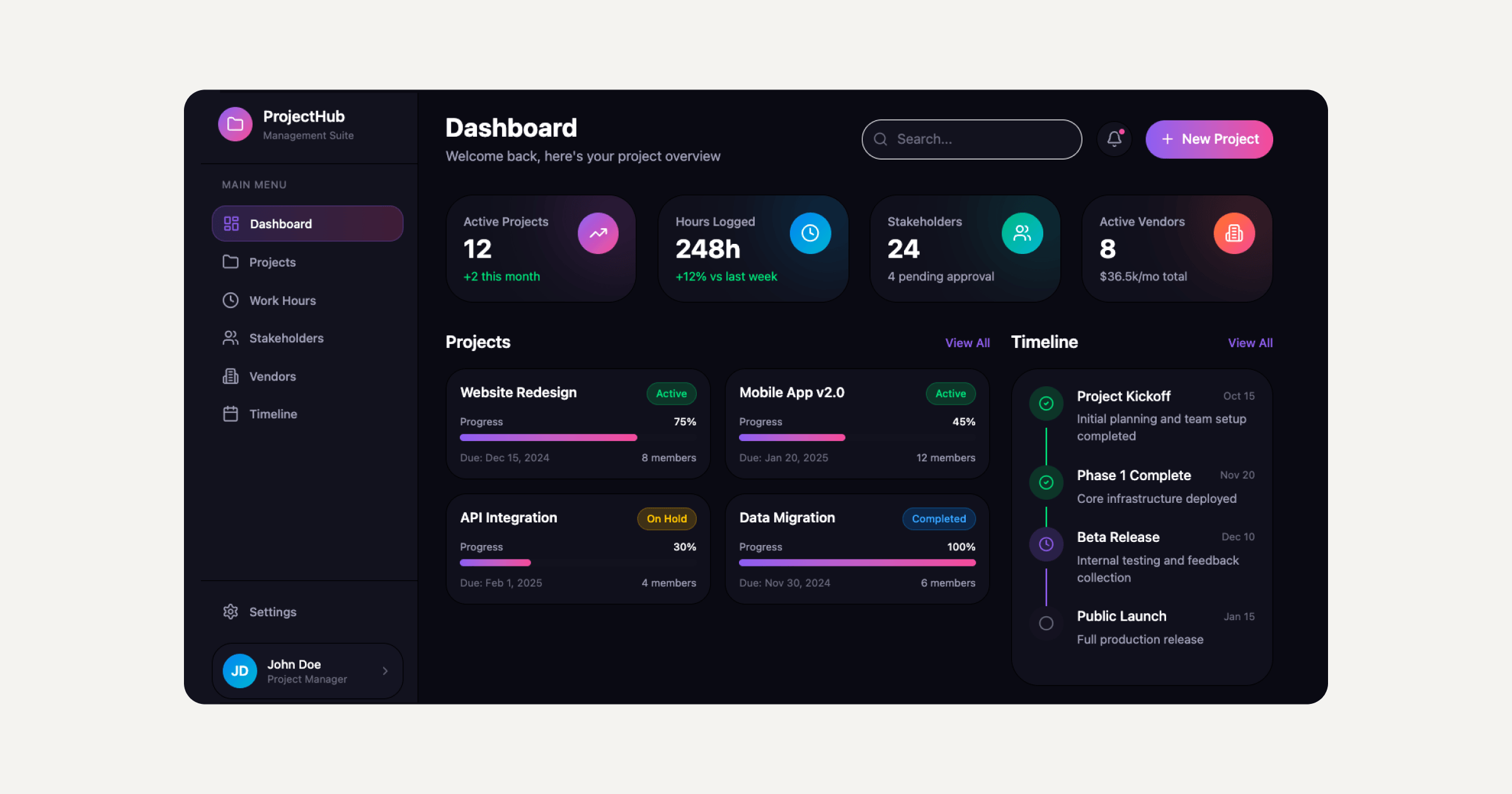
WordPress and Elementor remain solid ways to build and extend a site, including sites that already support light and dark themes through their own settings. Sticklight sits alongside them as a faster, prompt-first way to build the custom pieces around a project, like a tailored dark mode implementation, when you want something built exactly to your specification rather than assembled from a generic toggle.
Frequently asked questions
Do I need JavaScript to add dark mode to a website.
You need a small amount of JavaScript to let visitors toggle the theme manually and to remember their choice between visits. If you only want dark mode to follow the visitor’s system setting, CSS alone with a prefers-color-scheme media query is enough.
Should dark mode be on by default or opt in.
Most sites default to matching the visitor’s system preference automatically, then offer a toggle for anyone who wants to override it. That respects a choice the visitor already made on their device instead of asking them to decide again.
Why does my site flash light mode for a second before switching to dark.
This happens when the script that applies the saved theme runs after the page has already started rendering. Moving that script earlier in the page, so it runs before the main content paints, removes the flash.
Do images and logos need special handling for dark mode.
Often yes. Images with transparent backgrounds designed for a light page can look out of place on a dark one, and some logos or charts need a separate dark version or a subtle border so they stay visible against the new background.
How do I keep light and dark mode colors consistent across a whole site.
Define your colors once as CSS custom properties, such as background, text, and border color, and reference those variables throughout your stylesheet instead of hardcoding hex values. Switching themes then only requires changing the variable values in one place.
Built by the Elementor team. Powered by Claude.
Let it glow.
