
How to Add a Newsletter Signup to Your Website in 2026

Adding a newsletter signup to your website means placing a short form somewhere visible, connecting it to an email tool that stores addresses and sends messages, and asking for consent before anyone joins your list. You can have a working signup live in under an hour, then spend the rest of your time refining where it sits and what it says.
The steps below walk through the whole process, from picking a spot for the form to sending a welcome email that actually gets opened.
Why an email list still matters
Social platforms change their algorithms constantly, and a post that reaches your followers today might reach almost none of them next month. An email list is different. Once someone subscribes, you can reach their inbox directly, on your own schedule, without asking a platform for permission. That makes it one of the few marketing channels you fully control.
It also tends to attract people who are already interested in what you do. Nobody signs up for a newsletter by accident, so the people on your list are a warmer audience than random site traffic.
Where the signup form should live
There is no single right answer here, but a few placements consistently work well:
- Inline, inside a blog post or article, right after a section that delivers real value.
- In the footer, so it is available on every page without interrupting anyone.
- As a popup or slide-in, timed to appear after a visitor has scrolled or spent some time on the page, rather than the instant they arrive.
Many sites use more than one of these at once. A footer form catches casual visitors, while an inline or popup form targets people who are already engaged with your content.
Connecting the form to an email tool
The form itself is just a shell. To actually collect and manage addresses, it needs to connect to an email service provider. Most of these tools give you an embeddable form, a bit of code to paste in, or a direct integration for popular website builders. Pick a provider that fits your budget and technical comfort, create a list or audience inside it, and generate the signup form from there. Once that form is connected, every new subscriber lands automatically in your list, ready for your first send.
What to ask for, double opt-in, and consent
Keep the form short. In most cases, an email address is enough. Every extra field, like a name or a job title, adds friction and lowers your completion rate, so only ask for information you will genuinely use.
Turn on double opt-in if your provider offers it. After someone submits the form, they get a confirmation email and have to click a link before they are officially subscribed. It adds one extra step, but it confirms the address is real and that the person actually wants to be there, which keeps your list clean and your emails out of the spam folder.
Alongside the form, add a short, honest line about what subscribers will receive and how often, plus a link to your privacy policy. People are more willing to sign up when they know exactly what they are agreeing to.
The welcome email and testing before launch
Set up a welcome email that sends automatically the moment someone confirms their subscription. This is the message most likely to be read, so use it to say thank you, set expectations for what is coming, and point to one or two pieces of content worth checking out.
Before you consider the signup finished, test it yourself. Submit the form with a real address, confirm the double opt-in email arrives, check that the welcome email looks right on both desktop and mobile, and make sure the form displays correctly across browsers. A signup form that quietly fails to send confirmations can go unnoticed for weeks, so this last check is worth the few minutes it takes.
Where Sticklight fits
Sticklight is a vibe-coding platform built for professional web creators. You describe what you want in plain language, and it turns that prompt into a production-ready website, app, dashboard, CMS, or tool. A newsletter signup is a small example of what it can build, but the same approach scales up to full member areas, custom admin panels, and multi-step onboarding flows, all generated from a conversation rather than assembled field by field.
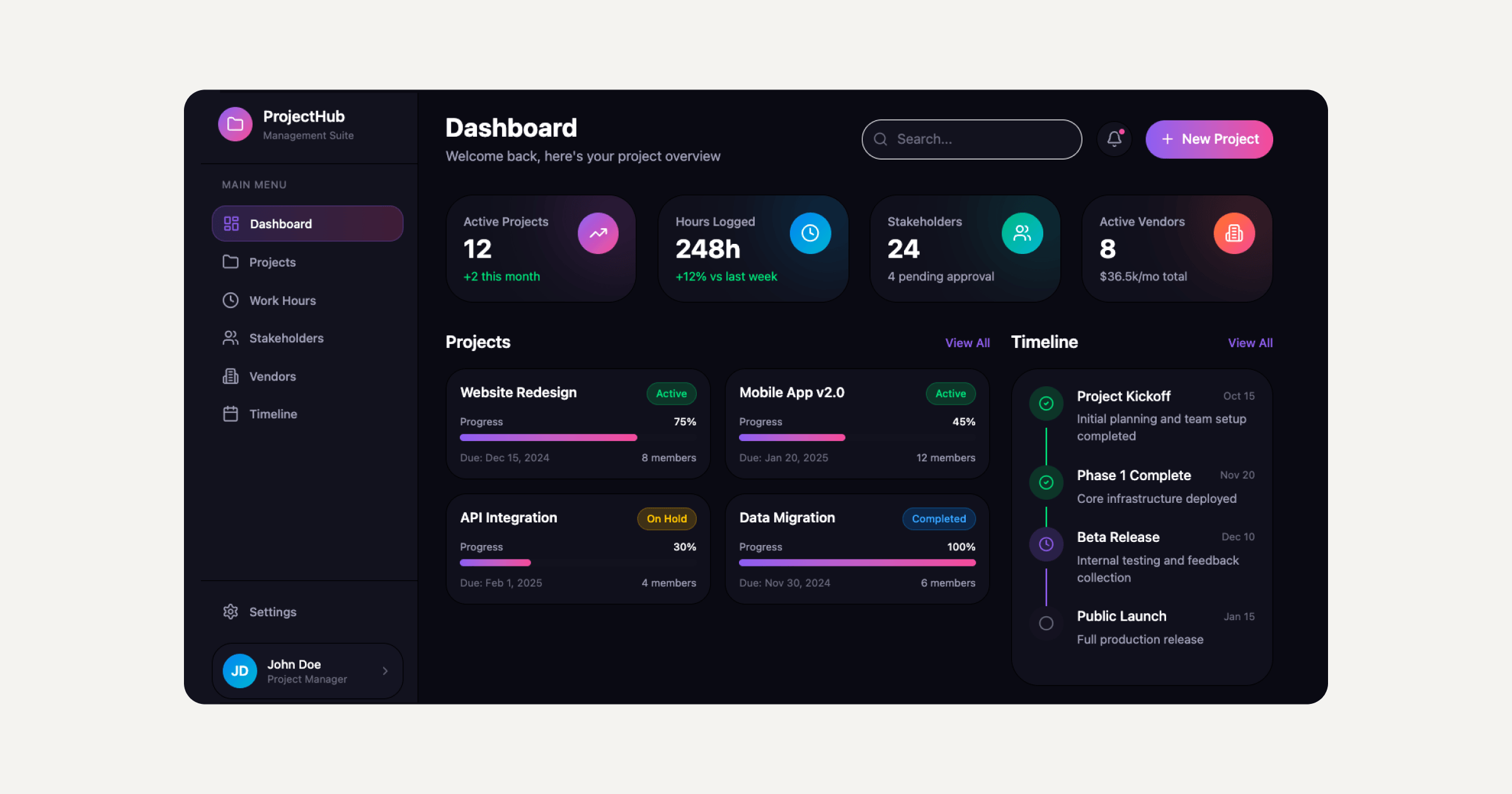
That scope is what makes Sticklight more than a website builder. It is built for creators who want to go beyond static pages toward being a full-stack creator, shipping the front end, the logic behind it, and the systems that connect them. WordPress and Elementor remain part of that picture too, giving you additional ways to extend a site once it is live.
Frequently asked questions
Do I need coding skills to add a newsletter signup to my website?
No. Most email tools provide an embeddable form or a direct integration with popular website builders, so you can add a signup without writing code.
Where should I place the newsletter signup form for the best results?
Common spots include the footer, inline within an article after a valuable section, and a popup that appears after a visitor has scrolled or spent time on the page. Many sites combine two or more of these.
What is double opt-in and should I turn it on?
Double opt-in sends a confirmation email that a subscriber must click before joining your list. It adds one extra step but confirms the address is real and keeps your list healthier over time.
What information should the signup form actually ask for?
In most cases an email address alone is enough. Extra fields like a name or job title add friction and tend to lower how many people finish signing up, so only request what you will genuinely use.
How do I know the signup form is working correctly before launch?
Submit the form yourself with a real address, confirm the opt-in and welcome emails arrive, check how they look on desktop and mobile, and verify the form displays correctly in different browsers.
Built by the Elementor team. Powered by Claude.
Let it glow.
