
How to Add a Search Bar to Your Website in 2026

Add a search bar once visitors can’t find what they need by browsing alone, which usually happens somewhere around 20 to 30 pages, posts, or products. The fastest path is to pick a search approach that matches your site’s size, place the search box where people expect it, make sure your content is actually indexed, and test the results on a phone before calling it done.
Here is the loose order most teams follow, from deciding whether you need search at all to checking that it holds up on mobile.
When your site needs a search bar
A small brochure site with five pages does not need search, a clear menu is enough. Once you have a blog with dozens of posts, a knowledge base, a documentation library, or a store with more than a handful of products, visitors start typing what they want instead of clicking through categories. Watch your support requests or on-site search logs for signs people are hunting for content they cannot see in the menu. That is your cue to add a search bar.
Built-in search or a hosted search service
Most content management systems and store platforms ship with a basic built-in search that matches titles and body text. It is already there, it costs nothing extra, and for small to medium sites it usually does the job. The trade-off is that built-in search tends to be literal, and it can struggle with typos, synonyms, and ranking the most useful result first.
A hosted search service indexes your content separately and typically returns faster, more forgiving results, including typo tolerance and filtering by category, tag, or price range. It usually needs a small script or plugin to connect it to your site. Reach for built-in search when your catalog is small and simple, and reach for a hosted service once you have a large catalog, need filters, or your visitors search in ways your built-in tool cannot handle.
Placing the search box and indexing your content
Put the search box somewhere visitors expect it, usually the top navigation bar, ideally as a visible input field rather than an icon hidden a few clicks deep. On mobile, an icon that expands into a full-width field works well since space is tight. Avoid burying search inside a menu two or three taps down.
- Use one clearly labeled input, not several search boxes competing for attention.
- Make the field wide enough to show a few words of a typed query.
- Add a visible way to submit, whether that is a button or just the enter key.
Once the box is placed, confirm your pages are actually indexed by the search tool. Built-in search usually indexes automatically as you publish, but hosted services often need you to trigger a crawl or push content through after big updates. Check that new pages, updated titles, and anything you removed all show up correctly, not just what existed when you first set search up.
Tuning results and empty states
Search that returns messy or irrelevant results wears down trust fast. Test your most common queries and check whether results make sense in order, not just whether something comes back at all. Many search tools let you boost certain pages, weight titles higher than body text, or exclude old and unpublished content from results.
Plan for empty searches too. A visitor who types something you have no content for should not land on a blank page. Show a friendly message, point to a few popular pages or products, or offer a way to browse categories instead. That single moment often decides whether someone stays on your site or leaves.
Testing on mobile
Search behavior is easy to get wrong on small screens. Check that tapping the search icon does not shift the layout awkwardly, that the on-screen keyboard does not cover the input field, and that results are readable without pinching to zoom. Run a few real searches on an actual phone rather than a resized browser window, since touch keyboards and autocomplete behave differently than desktop typing.
Where Sticklight fits
Sticklight is the vibe-coding platform for professional web creators, built for turning a prompt into a production-ready website, app, dashboard, CMS, or internal tool. Adding a search bar is exactly the kind of feature you can describe in plain language and have built out end to end, from the input field down to the indexing logic behind it, instead of piecing together a plugin and a script by hand.
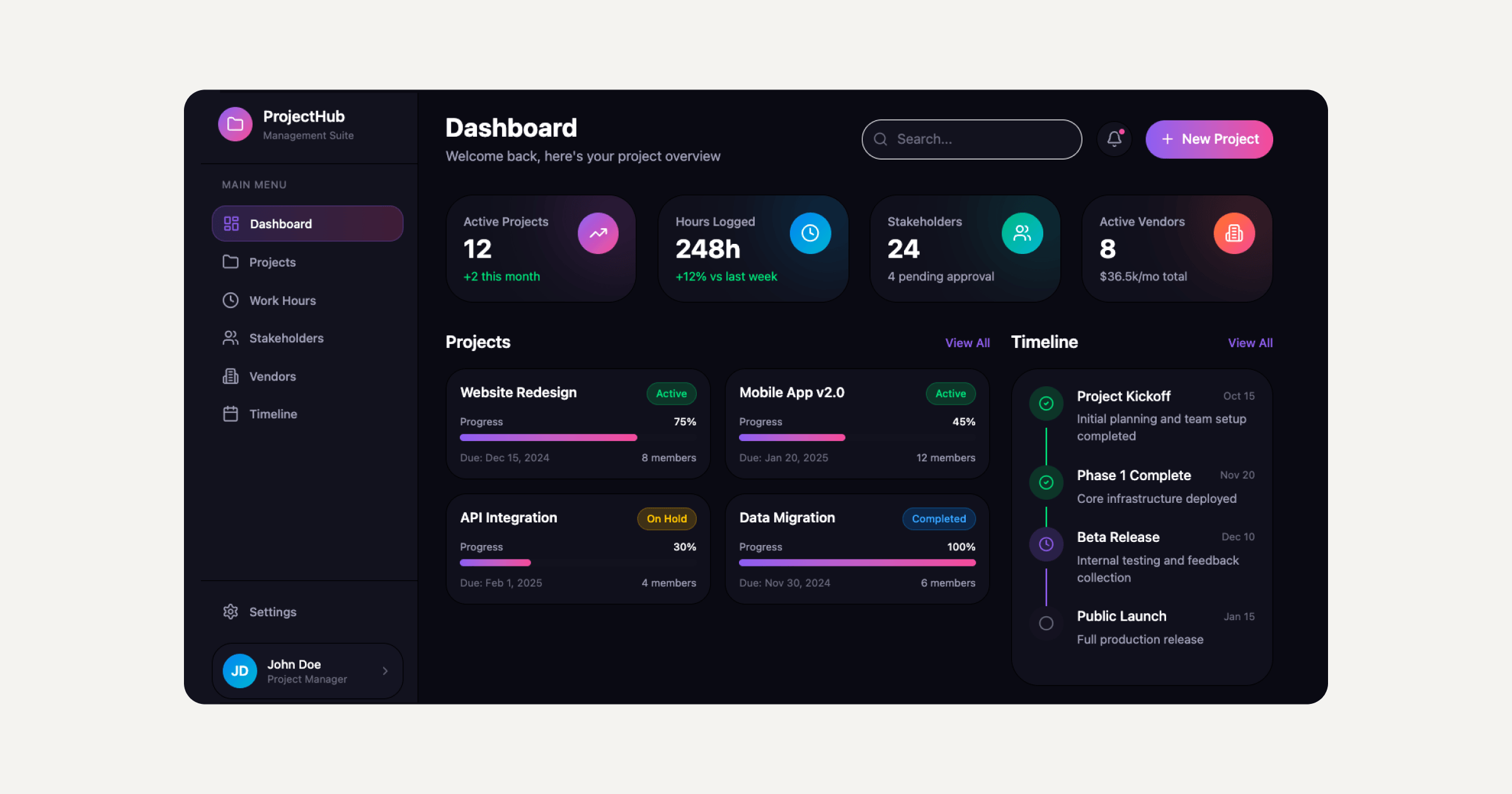
That same approach carries over to features well beyond search, including filtering, dashboards, custom admin tools, or a full CMS, which is part of why Sticklight goes beyond building websites toward becoming a full-stack creator platform. WordPress and Elementor remain solid ways to build and extend a site, and Sticklight adds to that toolkit rather than replacing it, giving you another way to ship features quickly when a prompt can carry most of the work.
Frequently asked questions
Do I need a hosted search service or is built-in search enough?
Built-in search works fine for small to medium sites with straightforward content. Once you have a large catalog, need typo tolerance, or want filters like category or price, a hosted search service is usually worth the extra setup.
Where should I place the search bar on my website?
Put it in the top navigation where visitors expect it, ideally as a visible input rather than a hidden icon. On mobile, an icon that expands into a full-width field works well since space is limited.
How do I make sure new pages show up in search results?
Built-in search tools usually index new content automatically as you publish. Hosted search services often need a crawl or a content push after major updates, so check that new and updated pages appear correctly.
What should happen when a search returns no results?
Show a friendly message instead of a blank page, and point to popular pages, products, or categories the visitor can browse instead. This keeps people on your site rather than sending them away.
Does adding a search bar slow down my website?
A well-implemented search feature, whether built-in or hosted, adds minimal load time since results are usually fetched separately from the main page content. Test load speed after setup to confirm it stays fast on both desktop and mobile.
Built by the Elementor team. Powered by Claude.
Let it glow.
