
How to build an app for free: app development for beginners (2026)

You can build an app for free by starting small, using an AI-native builder like Sticklight to turn a plain-language prompt into working software, and publishing your first version on a free plan before you reach for a credit card. The honest version of that answer includes limits. Free plans are built for trying the platform and shipping a real first product, not for running a large team or heavy ongoing usage. This guide walks through five steps from a blank page to a published app, and says plainly where the free tier ends.
We wrote this for non-technical creators, students, and founders with an idea but no engineering background. None of the five steps below require code, though you can write it if you want to. By the end, you will have a real, working app you can share with a link.
- You can build an app for free on Sticklight’s Free plan, starting from a plain-language prompt rather than code.
- Pick a small, well-scoped first app. Narrow ideas ship faster and teach you more than ambitious ones.
- Sticklight’s flow moves through three stages: Prompt, Build, and Publish.
- Skills add packaged expertise, such as accessibility or SEO, to your app with one click during the Build stage.
- Free plans have real limits. Higher capacity, multi-seat collaboration, and dedicated support live on paid plans (Pro, Team, Enterprise), which scale with seats and features rather than page count.
- Publishing includes a security scan and built-in SEO by default, on any plan.
Step 1: Choose a simple, well-scoped first app
The biggest mistake beginners make is starting with an idea that is really five ideas stitched together. A first app should do one thing well. Think of a habit tracker, a simple booking form, a small internal tool for logging inventory, or a directory that pulls from a spreadsheet. Each of those is scoped enough to finish in a single sitting.
Before you open any tool, write down three things: who the app is for, what one action they take in it, and what they see after they take that action. If you cannot answer all three in a sentence each, the scope is still too wide. Trim it until you can.
- Good first app: a single-page tool that logs entries and shows a list.
- Good first app: a booking form that collects details and confirms a slot.
- Too broad for a first app: a full marketplace with accounts, payments, and messaging.
Scoping down is not a compromise. It is how you learn the tool, get to a working product quickly, and build the confidence to take on something bigger next.
Step 2: Build an app for free with Sticklight’s Free plan
This step happens on Sticklight, the vibe-coding platform that takes professional web creators beyond websites and into full-stack creators, built by the Elementor team and powered by Claude. It turns a prompt into production-ready websites, apps, dashboards, CMS, and other tools, and the Free plan is built specifically so you can try the platform and ship a real product on it instead of a demo.
Create your account and start a new project. You do not need a credit card to build your first app. The Free plan gives you the same Prompt, Build, and Publish flow that professional creators use, so the app you build here is the same kind an agency would ship for a client.
Sticklight’s pricing scales with seats and features, not with how many pages or apps you build, across four tiers: Free, Pro, Team, and Enterprise. Pro suits independent creators, freelancers, and small studios. Team adds multi-seat collaboration and a wider set of Skills. Enterprise adds single sign-on, a security review, and dedicated support. You will not need any of that for your first app, but it helps to know where the ceiling is.
Step 3: Describe the app in a prompt and generate the first version
With your project open, go to the main prompt box and describe the app you scoped out in step one. Be specific about the one action a user takes and what they see afterward. A prompt like “a simple tool where a user logs a daily habit and sees a running streak count” gives Sticklight enough to generate a real first version, structure, interface, and logic included.
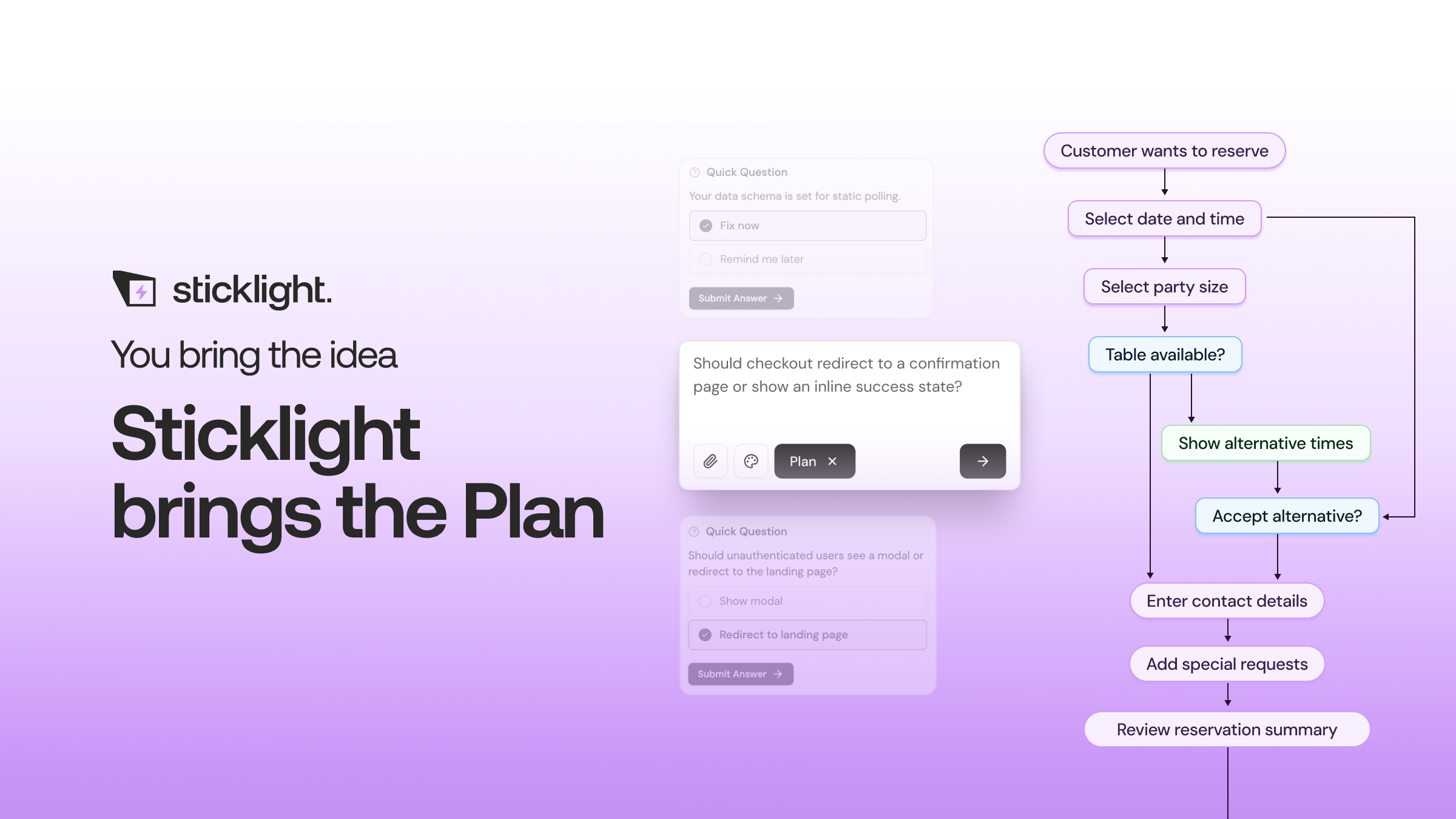
If your idea has a few more moving parts than a single sentence can hold, use Plan Mode. It is built for exactly this, breaking a more complex task into a clearer sequence before generation starts, so the first version comes out closer to what you actually meant.
Two other entry points help once you are comfortable with the platform. Templates let you start from an existing structure and adapt it. Connectors bring in tools suited to your use case. Once you submit the prompt, Sticklight generates a working version, not a mockup, a real first draft you can click through and react to.
Step 4: Refine on the canvas and add a Skill or two
Your first generated version will be close, but it is rarely exactly right, and that is normal. Sticklight hands control back to you at this point. You can edit directly on the canvas, adjusting layout, copy, and behavior by hand, or edit the underlying code directly if you are comfortable with that. AI does the heavy lifting on the first pass. You keep full control of every pixel after that.
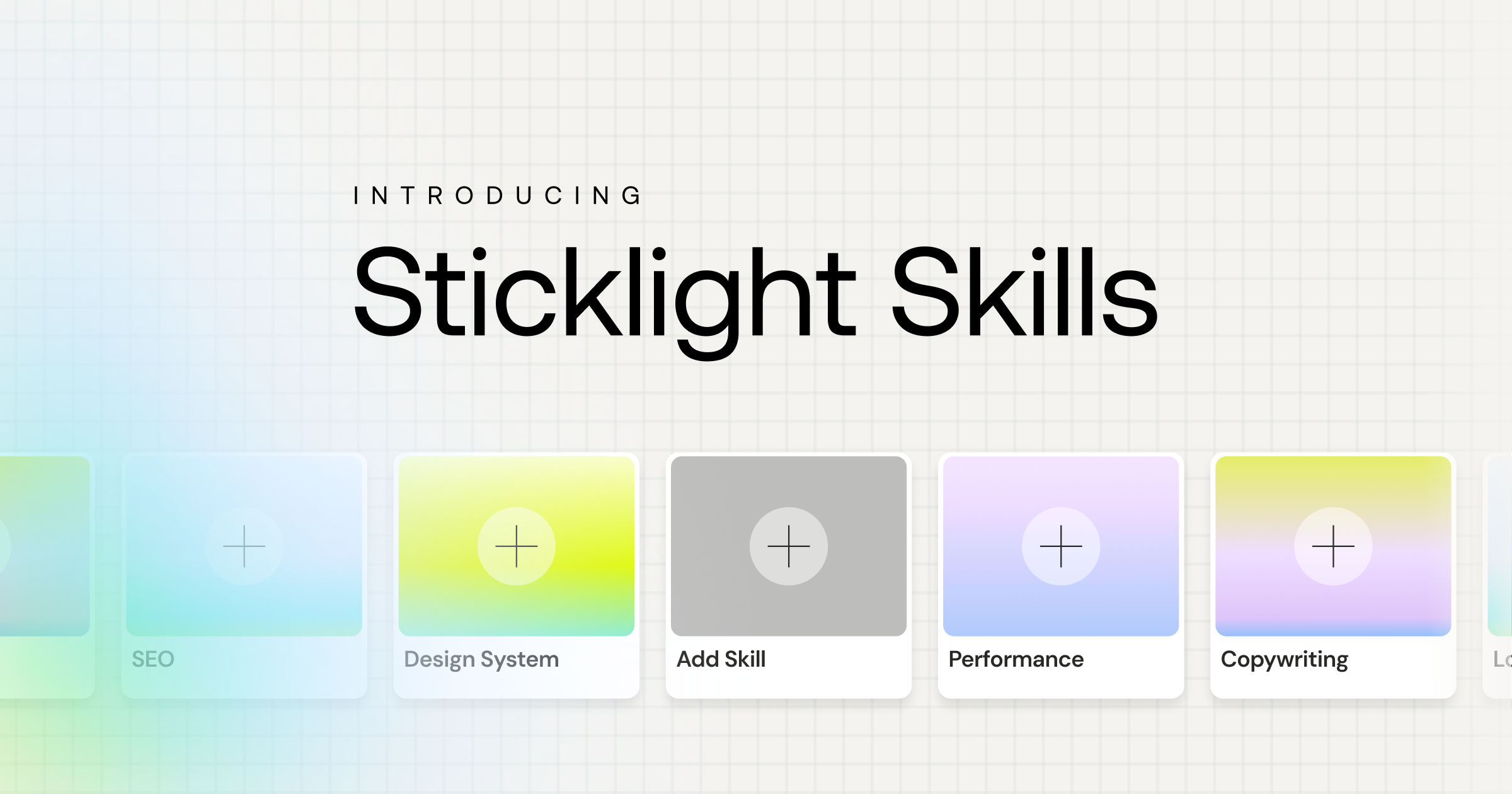
This is also the point to add a Skill. A Skill is a packaged unit of expert know-how you add to your project with one click during the Build stage. Nine are live today: Accessibility, SEO, Design System, Performance, Copywriting, Localization, Micro-interactions, Onboarding, and 3D Web Experience. For a first app, two are worth reaching for right away.
- Accessibility. Ships WCAG-compliant markup, focus states, and ARIA attributes, so your app is usable by more people from day one without you having to know the standards yourself.
- SEO. Ships meta tags, schema, sitemap, and on-page best practices, useful even for a small internal tool if you ever want it findable or shareable with a clean link preview.
Skills compound. Every project you add them to gets a little sharper, and by your tenth app the process is noticeably faster than your first. A roadmap feature called Agents, labeled coming soon, is meant to extend this further, but it is not something to rely on for the app you are building today.
Step 5: Publish and share it
Once the app looks and behaves the way you want, move to the Publish stage. Sticklight runs a security scan on every build before it goes live, and SEO fundamentals are built in by default, so you are not starting from zero on either front. From there, you can connect a custom domain and hand the app real hosting.
Here is the honest limit of a free plan: it is built to get you from idea to a published, working app, and it does that well. If you later need more Skills available at once, multi-seat collaboration, or the higher capacity and dedicated support that come with running several client apps at scale, that is when Pro, Team, or Enterprise start to make sense. None of that is required to finish and share this first app.
Share the published link with whoever the app was for. If it is a tool for yourself, use it for a week and see what you would change. If it is for a client or a small team, ask what is missing. That feedback is the best brief for your second app, which will go faster than your first.
You don’t need permission to start small. Pick one concrete task, finish it badly if you have to, and you’ll already know more than you did this morning.
Itamar Haim
Built by the Elementor team. Powered by Claude.
Let it glow.
