
How to code an app: no coding required

Coding an app no coding required sounds like a contradiction, but it describes exactly what an AI-native building platform lets you do today. With a tool like Sticklight, you describe what you want in plain language, the platform generates real, production-ready code behind the scenes, and you stay in charge of what the product looks like and does. You never open a code editor, but what comes out the other end is a working app, not a mockup you hand off to someone else to build.
This guide walks through the five steps of that process, from a rough idea to a published app you can keep improving. The AI handles the parts that used to require a developer, like wiring up the backend, generating clean code, and deploying it somewhere reliable. You handle the parts that require judgment: what the app should actually do, how it should look, and who it is for.
- You can build a real, working app from a plain-language description, with no code editor and no developer required.
- Sticklight handles the code, the backend logic, and the deployment work behind the scenes.
- You stay in control of the product: what it does, how it looks, and who it serves.
- Skills add packaged expertise, such as accessibility or performance, to your build with one click.
- Publishing and future updates happen the same way you built the app: by describing changes in plain language.
- Non-coders still bring the judgment that matters most, including knowing your users and deciding what the app needs to do well.
Step 1: Decide what your app should do
Before you open any tool, it helps to decide, in plain terms, the problem your app solves and who it solves it for. You do not need a technical spec or a list of feature requirements. You need a clear picture of the outcome: what someone should be able to do once they open your app, and why that matters to them.
A few questions are worth answering on paper first. Who is this for, and what do they already know how to do? What is the one task the app needs to handle well, before anything else? What information does it need to store, show, or collect, such as bookings, form entries, or a simple database of items? What does a finished, working version actually look like to you?
This step has nothing to do with code. It is about clarity. The more specific you are here, the less back-and-forth you will need later, and the faster the next steps go.
Step 2: Describe it to Sticklight in plain language
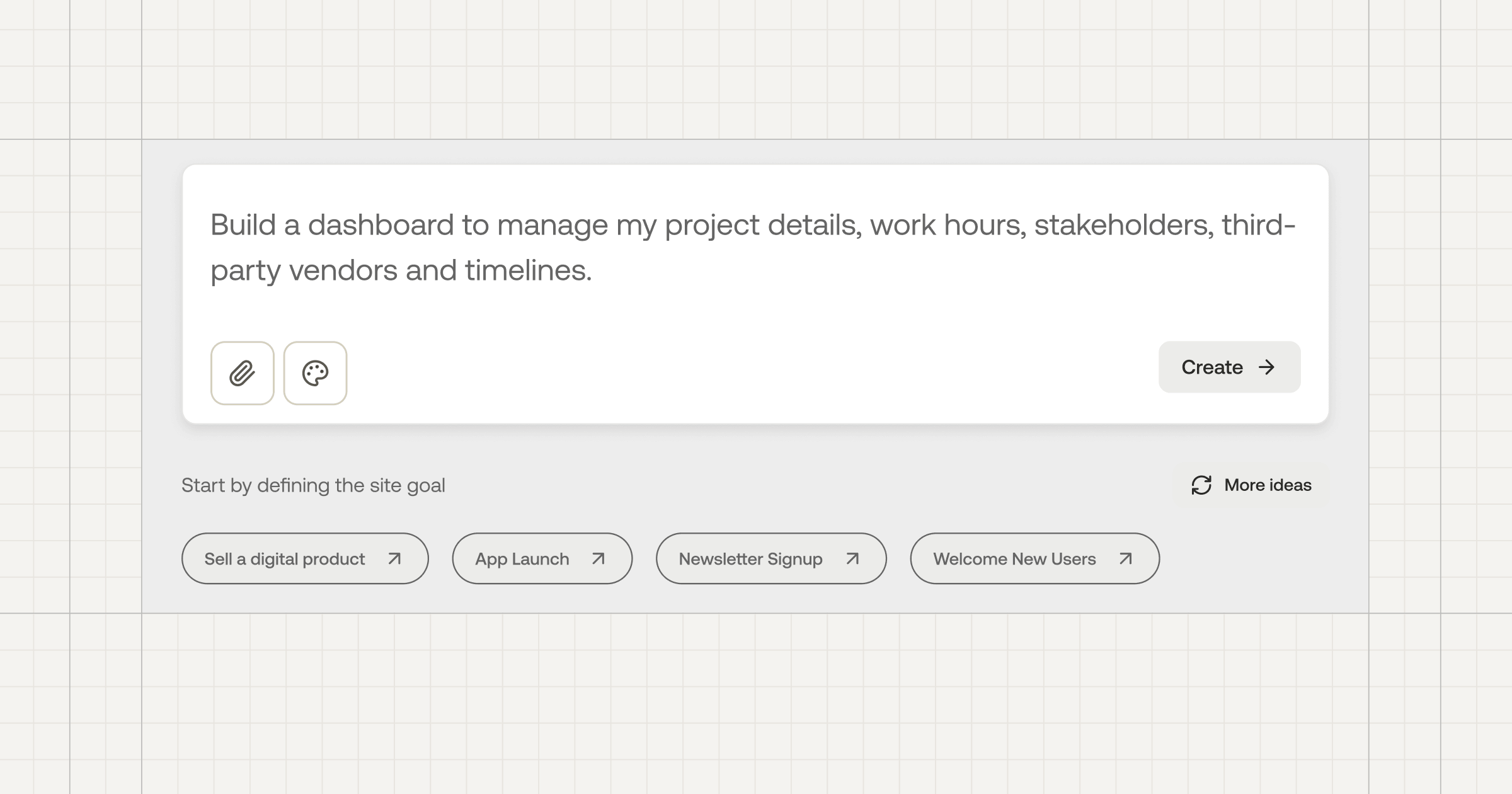
With that picture in mind, you describe the app to Sticklight the way you would explain it to a new hire on their first day. You are not writing a technical brief. You are writing a plain-language prompt: what the app does, who uses it, what it should feel like, and any specific screens or flows you already have in your head.
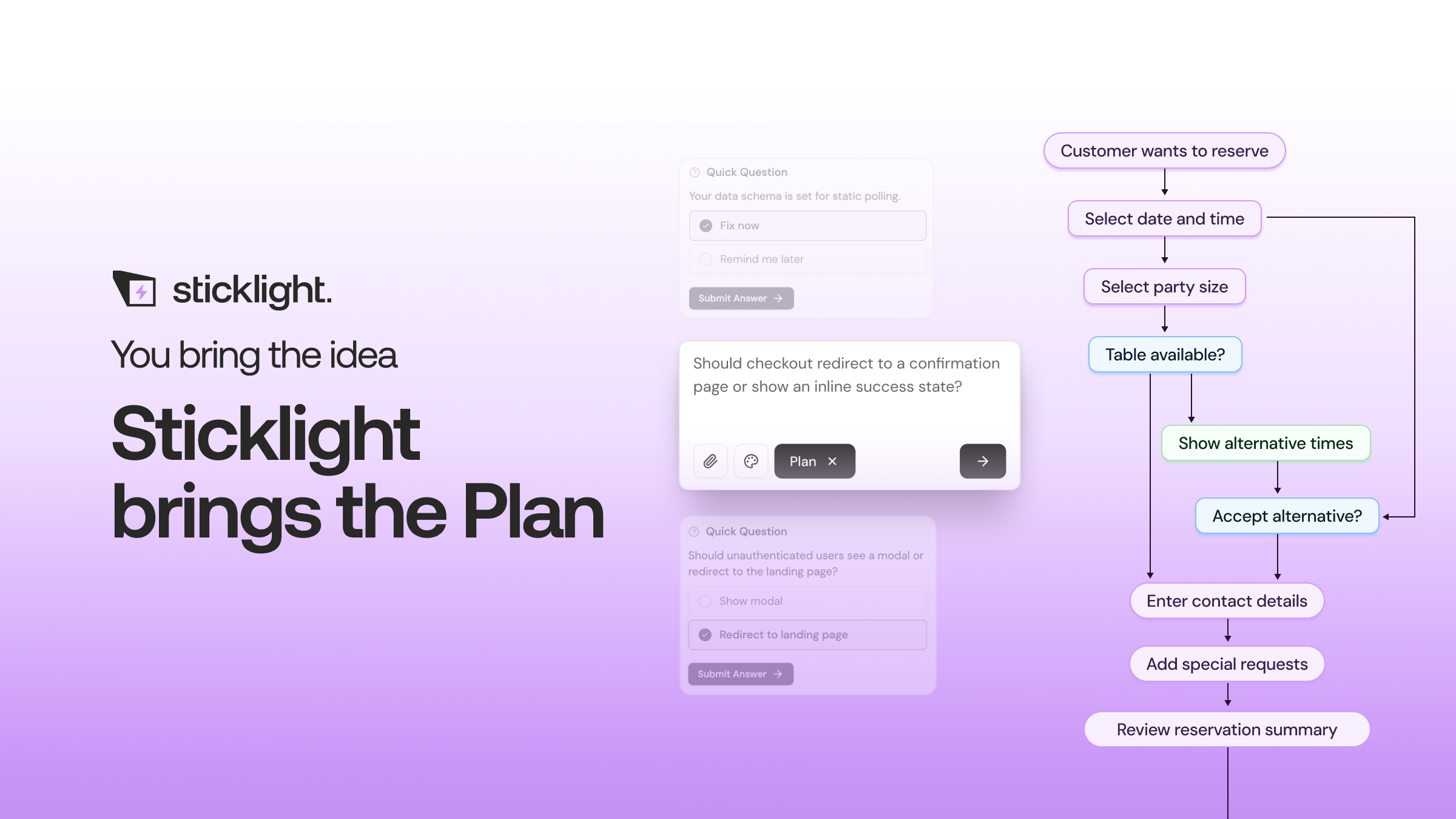
Sticklight’s main prompt box is the primary entry point, and it accepts exactly this kind of everyday language. If your idea has several moving parts, such as a booking flow plus an admin dashboard, Plan Mode breaks a complex ask into smaller steps before generation starts, so the platform builds toward the full picture instead of guessing at it in one pass.
You do not need to get the prompt perfect on the first try. Treat it as a starting draft. The next two steps exist precisely because a first description rarely captures everything you want.
Step 3: Generate and preview your working app
Now the promise of coding an app no coding required actually gets tested, because what you see next is not a static image or a slide deck. Sticklight turns your prompt into real screens with working logic behind them, and the preview lets you click through the app as if it were already live, because functionally, it is.
Try the core action first, the one thing you decided in step one that the app needed to handle well. Click the buttons. Fill in a form. Move through the flow the way a real user would. You are checking two things at once: does the app do what you asked, and does using it feel like the thing you pictured.
It is normal for the first generation to be close but not exact. That is expected, and it is what the next step is for.
Step 4: Refine by conversation and add skills
From here, you keep talking to Sticklight the way you would give feedback to a collaborator. Ask it to change a flow, rename a field, adjust the layout, or rethink a screen that is not working. Each round of conversation updates the actual app, not a description of one.
If you want more hands-on control at any point, manual editing and direct code editing on the canvas are both available. Most non-technical creators never need to touch that layer, but it is there, and it means the AI never locks you out of your own product.
This is also the stage to add Skills, which are packaged units of expert know-how you attach to your build with a single click. Several Skills are live today, including:
- Accessibility, for WCAG-compliant markup, focus states, and ARIA support
- SEO, for meta, schema, sitemap, and on-page best practices
- Performance, to keep the app fast as it grows
- Design System, for consistent styling across every screen
- Onboarding, to help new users understand the app on their first visit
- Copywriting, Localization, Micro-interactions, and a 3D Web Experience skill for projects that call for it
Skills compound as you keep building. A Skill you added for an earlier project carries expertise into the next one, so each app you ship tends to go faster and land closer to right on the first pass.
Step 5: Publish and maintain it, no code required
Once the app does what you need, publishing is part of the same flow you have been using all along. Sticklight includes SEO basics built in, a security scan on every build, the option to connect a custom domain, and hosting for the app itself. You are not exporting files and handing them to someone else to deploy.
Maintenance works the same way as building did. When you want to change something after launch, add a feature, or fix something that is not working the way you expected, you describe the change in plain language and Sticklight updates the live app. There is no separate maintenance skill set to learn.
If part of your business already runs on WordPress or Elementor, Sticklight connects to and extends that existing site rather than replacing it, so the app you just built can live alongside work you have already done.
You can start on Sticklight’s Free plan to try the platform and ship a real product. Pro, Team, and Enterprise plans scale with seats and feature access as your needs grow, and a bring-your-own-keys option is available on select plans for teams that want to manage their own AI costs.
The bug that took me three hours taught me more than the tutorial that took three days.
Itamar Haim
Built by the Elementor team. Powered by Claude.
Let it glow.
