

How to Design a Signup Form in 2026

A signup form that converts well asks for as little as possible, explains any confusing field in one plain sentence, and tells people the moment something is wrong so they can fix it right there. Everything else, styling, extra fields, clever copy, is secondary. Get those three things right and most of the abandonment problem goes away on its own.
The steps below cover the practical decisions that shape a form people actually finish: what to ask for, how to label it, how to validate it, and how to make it work as well on a phone as it does on a desktop screen.
Start with the fields you actually need
Every field you add is a small decision the visitor has to make, and each one lowers the odds they finish. Before you build anything, list the fields you are tempted to include, then cut the list down to what you will genuinely use in the first week after signup. An email address and a password cover most cases. A name can usually wait until the welcome email or the first time someone logs in.
If you are building for a business account rather than an individual, a company name or a role selector might earn its place. Everything past that, a phone number just in case, a marketing preference, a second security question, should have a clear reason to exist before it goes on the form.
Labels, placeholders, and instructions
Labels should sit above the field, stay visible while someone types, and use plain wording instead of clever wording. “Work email” tells someone more than “Email” if you actually want a work address. Placeholder text can show a format example, like how a phone number should look, but it should never replace the label entirely, because placeholder text disappears the moment someone starts typing and leaves the field looking unlabeled.
Password fields deserve their own instruction line stating the requirements up front, before anyone submits and gets rejected. Stating the rule in advance, such as a minimum length or a mix of characters, saves a failed attempt and a moment of frustration.
Validation that helps instead of blocking
Validate fields as someone finishes typing, not only after they hit submit. Checking an email format or a password strength in real time lets people fix a mistake while the context is still fresh in their head, rather than scrolling back up to a red border after submitting the whole form.
When something is wrong, say exactly what and where. A generic message telling someone the form has an error, without naming the field, forces them to re-read every line to find the problem. Specific, direct messages next to the exact field save time and keep the mood calm instead of tense.
Reducing friction across the whole flow
Friction is not only about field count. It includes anything that adds a decision or a delay: a CAPTCHA that is hard to read, a required email verification before someone can do anything else, a password confirmation field that duplicates a check the browser could handle automatically. Consider offering a social login option alongside email and password, since it removes the need to invent and remember a new password entirely.
- Autofill support so browsers and password managers can fill known fields correctly.
- A visible password toggle so people can check what they typed instead of guessing.
- One clear primary action, with any secondary links, like a login option for returning users, kept smaller and less prominent.
Small choices like these add up. None of them looks dramatic on its own, but together they decide whether someone finishes the form in one attempt or gives up halfway through.
Designing for mobile from the start
A large share of signups happen on a phone, so the mobile version is not a smaller version of the desktop form, it is the form. Fields should be tall enough to tap accurately, spaced far enough apart that a thumb does not hit the wrong one, and set to the correct keyboard type, so an email field brings up the “@” key and a numeric field brings up a number pad.
Keep the form on one screen where possible, or break a longer form into a short, visible sequence of steps rather than one long scroll. A progress indicator on a multi-step form reassures people that an end point exists, which matters more on a small screen where the whole form is rarely visible at once.
Where Sticklight fits
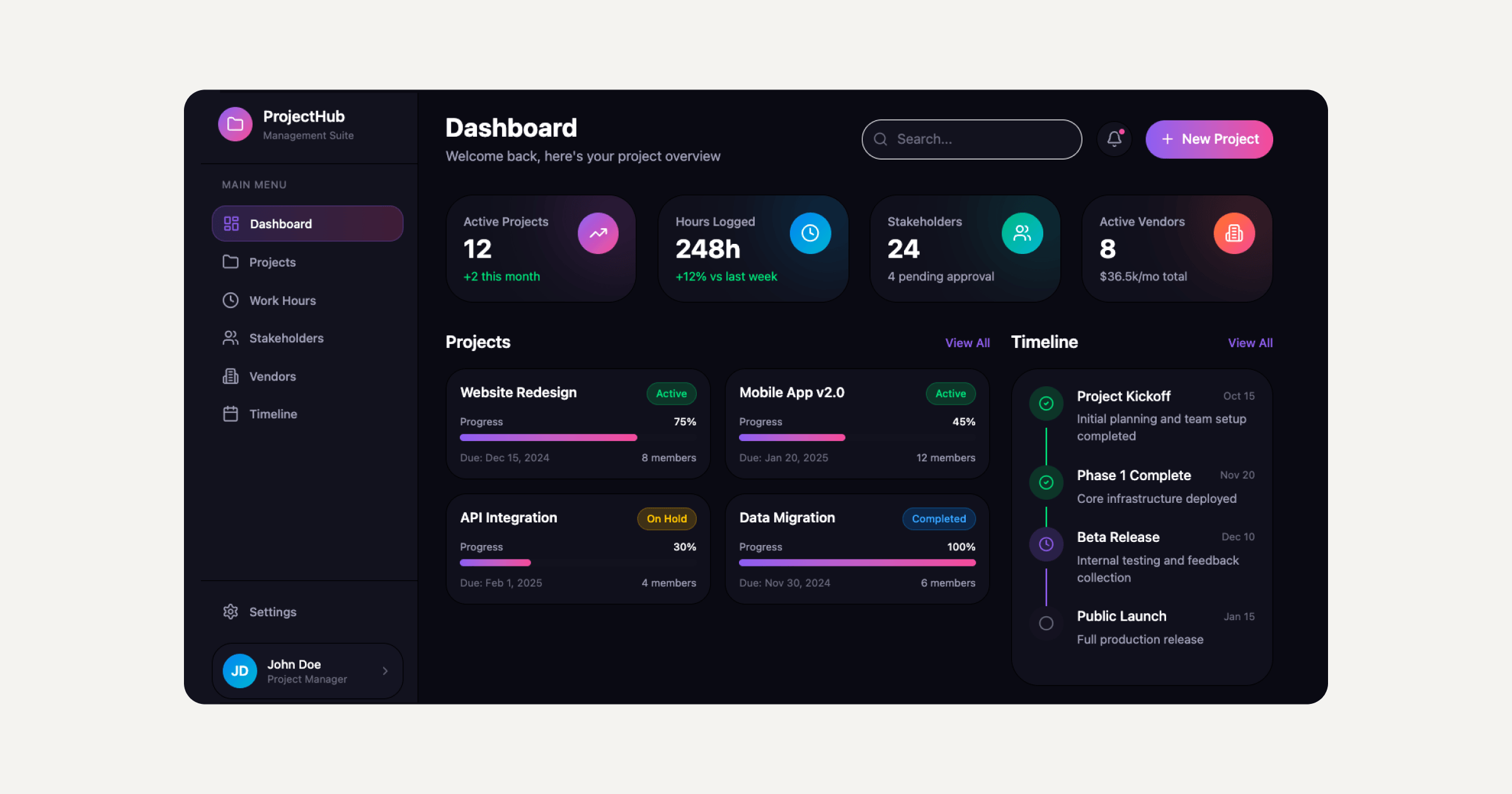
Sticklight is a vibe-coding platform built for professional web creators. You describe the signup flow you want in plain language, including the fields, the validation rules, and how it should look on mobile, and it turns that prompt into a production-ready website, app, dashboard, CMS, or tool. A signup form is a small piece of what it builds, but the same approach scales to full account systems, admin dashboards, and multi-step onboarding, all generated from a conversation instead of assembled field by field.
That range is what puts Sticklight beyond websites, into full-stack creation for people who want to ship the interface and the logic behind it together. WordPress and Elementor remain solid, proven ways to build and extend a site, and they fit naturally alongside a Sticklight-built signup flow once it is live.
Frequently asked questions
How many fields should a signup form have?
As few as you can justify. In most cases an email address and a password are enough, and any additional field should have a clear reason tied to what you will use in the first week after signup.
Should I validate fields as someone types or only after they submit?
Validating as someone finishes each field works better. It lets people fix a mistake while the context is still fresh, rather than returning to a form full of errors after submission.
Do I need a password confirmation field?
Not always. A visible password toggle that lets someone check what they typed can serve the same purpose with one less field to fill in.
How should a signup form change for mobile visitors?
Fields should be tall enough to tap accurately, spaced apart to avoid mistaken taps, and matched to the right keyboard type, such as an email keyboard for an email field. Longer forms work better as a short, visible sequence of steps than one long scroll.
What is the most common mistake in signup form design?
Asking for more information than the product actually needs at signup. Extra fields lower completion rates without adding real value, and details like a name or role can often wait until later.
Built by the Elementor team. Powered by Claude.
Let it glow.
