
Productivity app development: how to build a productivity app

Productivity app development is the process of turning a plain-language idea, a place to track tasks, take notes, see a calendar, check a dashboard, into a working application a team opens every day. You start with the data your team actually manages, build the core screens around it, and layer on collaboration and polish once the basics work. This guide covers what productivity apps need and a build path from a first prompt to a published product.
- Productivity apps share a common shape: task or project data, notes, a calendar, a dashboard, permissions, and notifications.
- This category is largely structured data paired with clean interfaces, which makes it a strong fit for prompt-based building.
- A working build path is prompt the core workflow and a dashboard, refine on the canvas, add Skills, connect data, then publish.
- Getting the data model right before you prompt saves rework later, since every other screen reads from it.
- Collaboration, permissions, and notifications matter, but they should be added deliberately, not bolted on at the end.
- Sticklight builds apps and dashboards, not only websites, with full control to edit every screen after the first draft.
What productivity app development actually means
Productivity app development covers any application built to help a person or team plan, track, and complete work. That includes task managers, project trackers, internal wikis, team calendars, operations dashboards, and the internal tools that hold a growing company together. The common thread is that these apps organize information rather than sell something or entertain someone.
Because the goal is organization, the hardest part of productivity app development is rarely the visual design. It is deciding what data the app holds, how that data relates to itself, and which view each type of user needs to see first.
The building blocks every productivity app needs
Most productivity apps are built from a small, repeating set of parts. Naming them up front makes the build faster, since you plan for each one instead of discovering it midway through.
- Task or project management. Lists, boards, or timelines that track work items, owners, and status.
- Notes and docs. A place to write context, decisions, and reference material next to the work itself.
- Calendars. Scheduling views that show deadlines, meetings, or milestones across a team or project.
- Dashboards. Summary views that pull data from tasks, notes, and calendars into one screen for quick review.
- Collaboration and permissions. Shared access with roles that control who can view, edit, or approve.
- Notifications. Alerts for due dates, assignments, mentions, and status changes.
Not every app needs all six on day one. A small team tool might start with tasks and a dashboard and add notes and notifications later. Knowing the full list still helps, because it tells you what the data model needs to support.
Why productivity apps are a strong fit for Sticklight
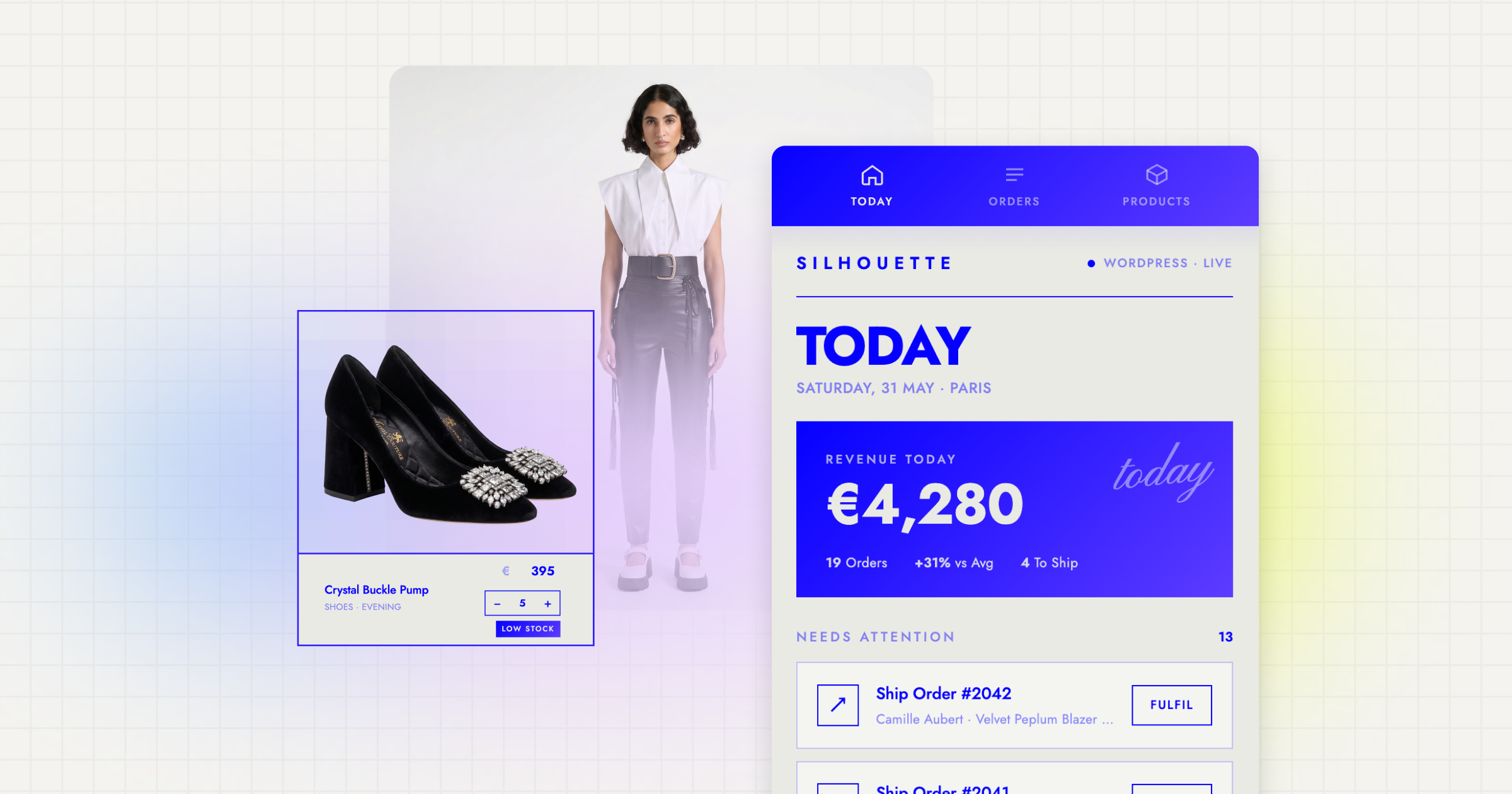
Productivity apps are largely structured data connected to clean interfaces. A task has a title, owner, status, and due date. A calendar entry has a date, a title, and a link back to a project. A dashboard is a set of queries against that same data, rendered as cards, tables, and charts. None of this depends on custom animation, which is exactly the kind of application a prompt-first build handles well.
Built by the Elementor team and running on Claude, Sticklight is the vibe-coding platform aimed at professional web creators. It turns a plain-language prompt into production-ready websites, apps, dashboards, CMS, and internal tools, then hands you full control to edit every pixel after the first build. For a productivity app, that means describing the tasks, notes, and dashboard you need in one prompt, getting working screens back, and refining the layout, fields, and logic by hand on the canvas.
A build path from prompt to published product
A productivity app does not need to be planned end to end before you start. A build path that works well in practice moves through five stages, each one building on what came before.
- Prompt the core workflow and a dashboard. Describe the main object your app tracks, tasks, projects, or records, along with the dashboard that summarizes it. This gives you a working skeleton to react to instead of a blank page.
- Refine on the canvas. Once the first draft exists, edit fields, adjust layouts, and reorder priorities directly, so the app matches how your team actually works rather than a generic template.
- Add Skills for design system, onboarding, and accessibility. Skills are packaged expertise added to a prompt with one click. A design system Skill keeps spacing, type, and color consistent across every screen. An onboarding Skill shapes the first-run experience for new teammates. An accessibility Skill applies WCAG-compliant markup, focus states, and ARIA.
- Connect data. Wire the app to the sources it needs to stay current, a database, a spreadsheet, or another internal tool, so the dashboard reflects real numbers instead of placeholder content.
- Publish. Ship the app with SEO built in where relevant, a security scan on the build, and a custom domain if the app is client-facing.
Getting the data model right before you prompt
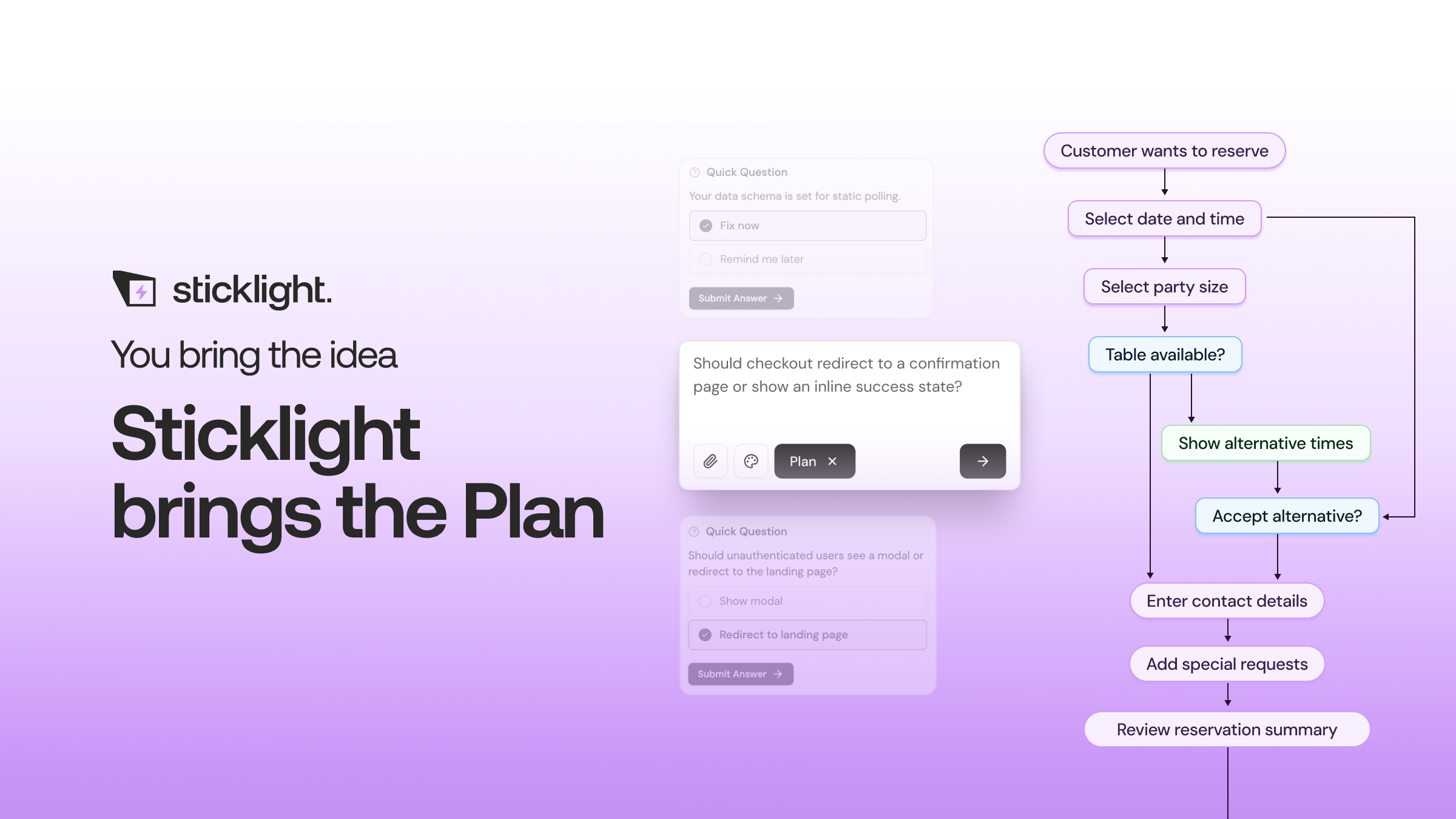
Every screen in a productivity app reads from the same underlying data, so it pays to think through that structure before the first prompt. Ask what the core object is, a task, a project, a client record, what fields it needs, and how it relates to other objects, such as a task belonging to a project.
A clear data model also determines what your dashboard can show later. If tasks do not track a due date from the start, no dashboard can display an upcoming-deadlines view without a rework of the structure first. Naming your objects and fields before you prompt tends to save a full round of edits after.
Designing dashboards people actually check
A dashboard earns its place when it answers a specific question a user asks every day, such as what is due this week, what is blocked, or who owns what. A dashboard built around general status, rather than a real daily question, tends to go unused after the first week.
Keep the first version narrow. A few cards or a table tied to the data your team checks most often will get used more than a dense screen with every possible metric. Add views once you see which numbers people return to, and treat that refinement as a normal canvas edit, not a separate project.
Collaboration, permissions, and notifications without the bloat
Shared access and alerts matter for any tool a team uses together, but they are also where productivity apps get over-built. A simple rule helps: add roles and permissions when different people genuinely need different access, not by default for every app.
Notifications follow the same logic. A due-date reminder or an assignment alert earns its place because it changes what someone does next. Alerts that only confirm activity, without prompting an action, add noise rather than value. Start with alerts tied to deadlines and ownership changes, then expand only if a real gap shows up in use.
Publishing, security, and what comes after launch
Publishing a productivity app is not the end of the work, since internal tools change shape as the team using them grows. Before publishing, a security scan on the build and a check of who has access to what protects data that often includes client information or internal financials.
After launch, the fastest way to improve the app is watching which screens get used and which get ignored, then adjusting the data model or dashboard to match. Because Sticklight gives you full control after the first build, that iteration is a direct canvas edit rather than a new project.
I trust a small project I actually finished far more than any course I merely sat through and completed.
Itamar Haim
Built by the Elementor team. Powered by Claude.
Let it glow.
