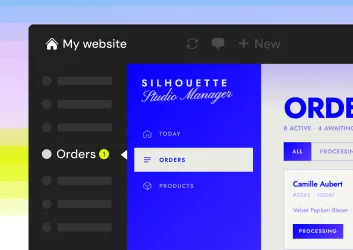
Build the ultimate tools for your WooCommerce store

Create whatever your store needs. Power it with live WooCommerce data using the Connector for WordPress.
WooCommerce stores, powered by Sticklight. Build beyond your storefront.WooCommerce stores, powered by Sticklight. Build beyond your storefront.WooCommerce stores, powered by Sticklight. Build beyond your storefront.

Build on your store data, not around it.

Reads your products and orders

Your live WooCommerce data. Products, variations, inventory, orders, and customers, powering any tool you build.

Updates your store from one place

Describe the change. Sticklight updates prices, stock levels, and order status, synced back to WooCommerce.

Your store roles, respected

Every tool inherits your WordPress and WooCommerce users and roles. Publish, and access follows.

Connected in one step

Add the Connector to WordPress in one step. Your WooCommerce store is paired instantly — no proxies, no custom flows.


Three tools to build first

WooCommerce powers millions of online stores. Connect yours to Sticklight and build the dashboards, apps, and pages that fit how your team actually sells.
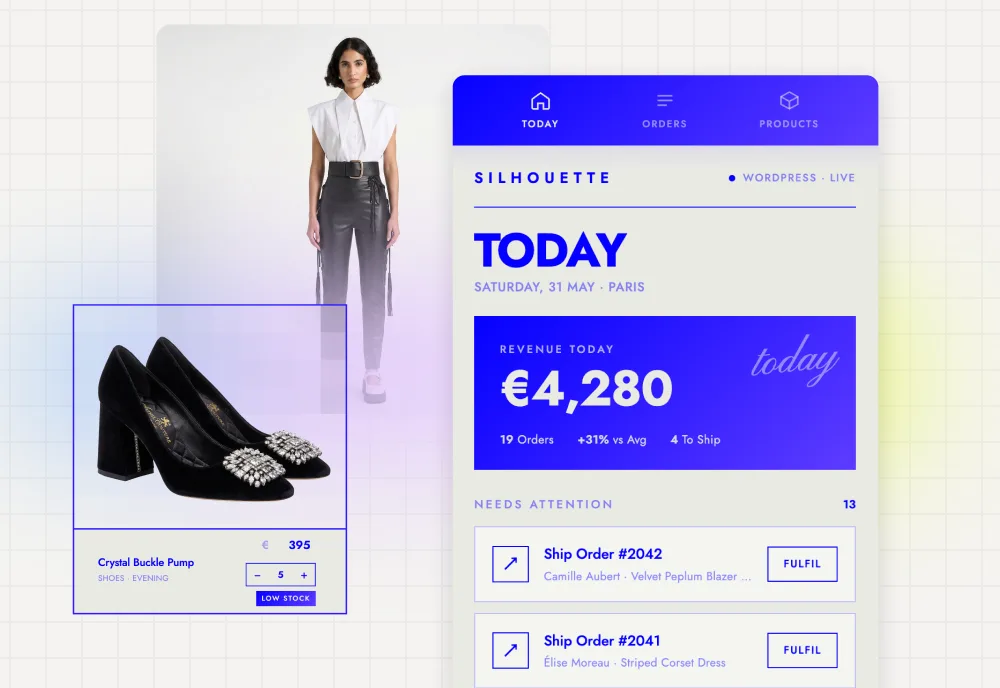
Run your store from your phone

Run your store from your phone

Create a mobile-friendly manager for your WooCommerce store. Update prices, adjust stock, and change order status on the go, with everything syncing back to your store.
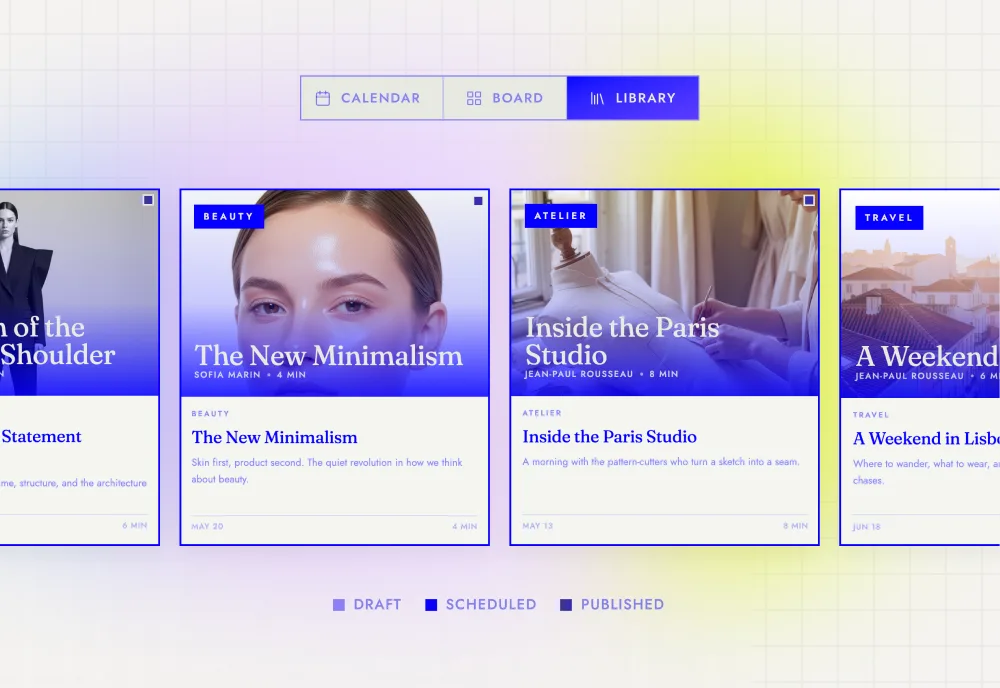
Track inventory at a glance

Track inventory at a glance

Build a real-time inventory dashboard for your team. See low-stock alerts, top sellers, and category performance — all pulled live from your WooCommerce catalog.
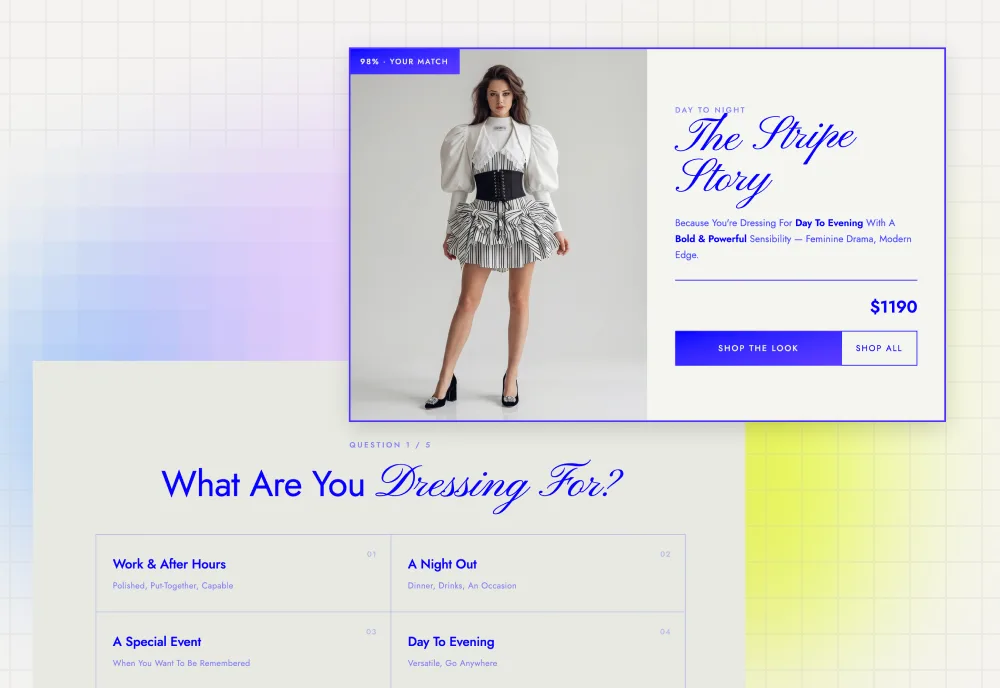
Turn your catalog into a quiz

Turn your catalog into a quiz

Design an interactive product finder visitors can take instantly. Pull live products directly from your WooCommerce store to power product discovery and boost conversions.

Two ways to get started

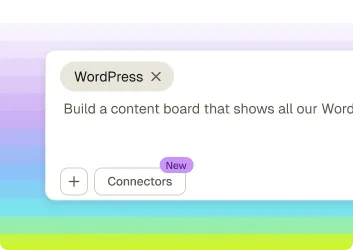
Sticklight prompt box with a WordPress connector tag for building from scratch

Build from scratch

  1. 1.
    Open Connectors, select WordPress, and add it to your project.
  2. 2.
    A WordPress connector tag appears in your prompt box.
  3. 3.
    Write your own WooCommerce use case from there and start building.
Sticklight prompt box with a WordPress connector tag and a pre-built use case starter prompt

Start with a use case

  1. 1.
    Open Connectors, select WordPress, and pick a pre-built use case.
  2. 2.
    The connector tag and a starter prompt both load into your prompt box.
  3. 3.
    Tweak the prompt if you like, then build your store tool.

Connect your store. Start building.

Your WooCommerce data, ready to power the tools you actually want to use.
No credit card required. Works with any WooCommerce store.