

The Connector for WordPress is live. Here’s what to build first

If you run a WordPress site, you’ve probably felt it: the data you need is in there, but getting to it is a project. WooCommerce holds your orders, your catalog, your stock. Your posts and drafts are in the CMS. But the WordPress admin wasn’t built for the kind of daily work most teams actually do, and plugins only get you so far.
Today, we’re introducing our Connector for WordPress. This gives you a different option. Build in Sticklight, connect your project to your WordPress site, and Sticklight builds it, powered by your own auth.
What connecting WordPress to Sticklight actually means
If you’re new to connectors, here’s how they work across the board. When you add the Connector for WordPress, your site’s data becomes the foundation for what you build. Sticklight reads your live WordPress data (posts, pages, products, orders, stock levels, media) and uses it to power any tool or dashboard you describe.
It’s not read-only. You can write back too. Describe a change: a price update, a stock adjustment, an order status change, a post going live. Sticklight makes the update in WordPress directly. Your site stays the source of truth; the tool you build is just a better interface for it.
The connection uses WordPress Application Passwords — built into WordPress 5.6 and later. Sticklight stores your credentials securely on its end; they’re never visible in your project code. Authenticate once, and the connector stays live until you disconnect it or WordPress revokes access. If that happens, Sticklight prompts you to re-authenticate.
Your existing WordPress roles carry over
When you publish an app built on the WordPress connector, there’s no separate login system to set up. Your existing WordPress users and roles are the access layer.
After publishing, only users from your connected site can sign in. Admins see everything; other roles see what they’re already permitted to see in WordPress.
If you’ve thought carefully about permissions in WordPress, that carries over to anything you build in Sticklight. Nothing to reconfigure.
How to connect your WordPress site to Sticklight
The simplest way is to just describe what you want to build — Sticklight will figure out the WordPress connection as you go. If you’d rather set it up first, here are three ways to do it:
Start from the homepage:
- Click Connectors and select WordPress
- Click Add to My Project — a WordPress tag appears in your prompt box
- Describe what you want to build and click Create
- When the conversation starts, you’ll be asked to enter your WordPress site URL, username, and password, then approve the Sticklight app
- Once connected, Sticklight continues building your project
Connect from inside a project:
- Click the + button and select Connectors
- Choose WordPress and click Add Connector to Project
- Enter your site URL, username, and password, then approve the Sticklight app
- The connector is live and ready to use immediately
Not sure where to start:
- Open Connectors, select WordPress, and pick one of the pre-built use cases
- The connector tag and a starter prompt load into your prompt box
- Adjust the prompt if you want, then build
Learn more about the Connector for WordPress here.
What to build first
Just describe what you want to build and Sticklight figures out the rest. Here are some ideas to start you off.
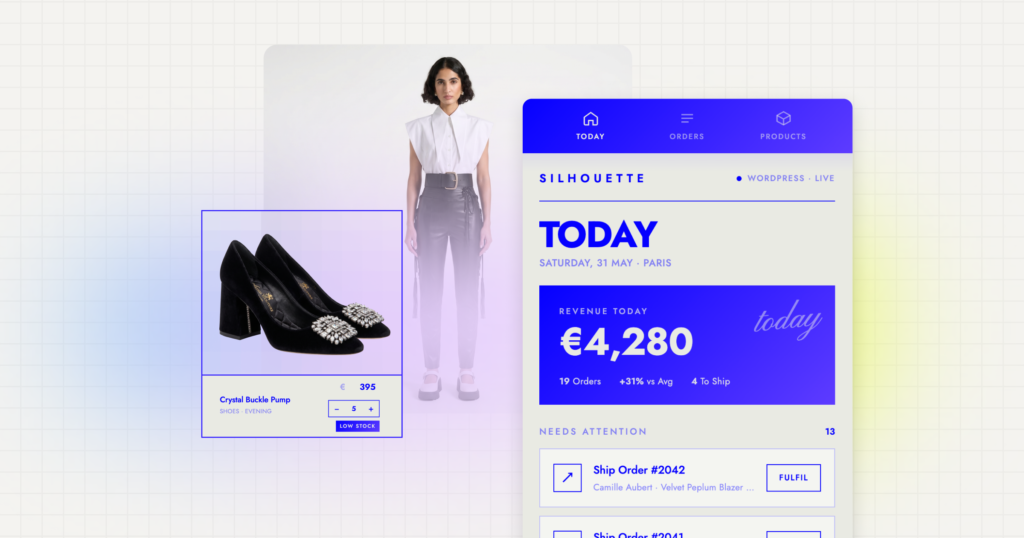
A mobile manager for your WooCommerce store
Updating an order from your phone through the WordPress admin is a lesson in patience. The interface wasn’t built for it.
Build a mobile-first store manager instead: one that shows your orders, lets you update status, adjust prices, and change stock, with everything syncing back to WooCommerce in real time. Laid out for how you actually work, not how the default admin works.
This is useful beyond the store owner too. An agency managing WooCommerce on behalf of a client can hand them a clean interface for day-to-day operations without giving them access to the WordPress admin at all.
Starter prompt: “Connect my WordPress site and build a mobile-friendly manager for my WooCommerce store. I want to update prices, adjust stock levels, and change order status directly from my phone, with everything syncing back to WordPress.”
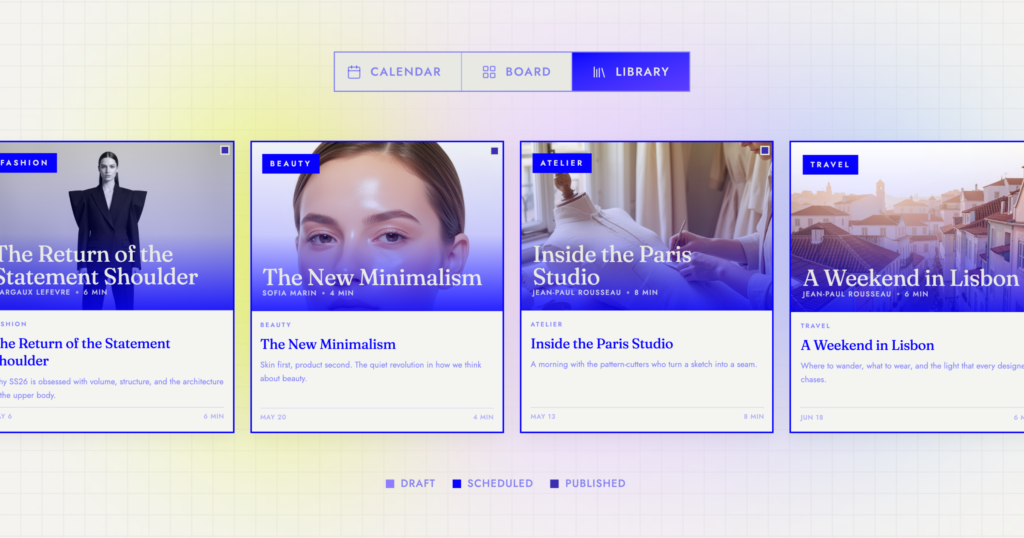
An editorial calendar your whole content team can use
If you publish regularly, the pipeline problem is familiar. Drafts live in someone’s head, scheduled posts are tracked in a spreadsheet nobody updates anymore, and there’s no single view of what’s coming next or who owns it.
Build a calendar that pulls directly from your WordPress posts and drafts. Every item shows its status, author, and publish date. Share it with your team and you’ve replaced the spreadsheet with something that actually stays current, because it’s reading from WordPress directly.
Starter prompt: “Connect my WordPress site and build an editorial calendar from my posts and drafts. Show me what is published, what is scheduled, and what is still in progress, with the author and publish date for each.“
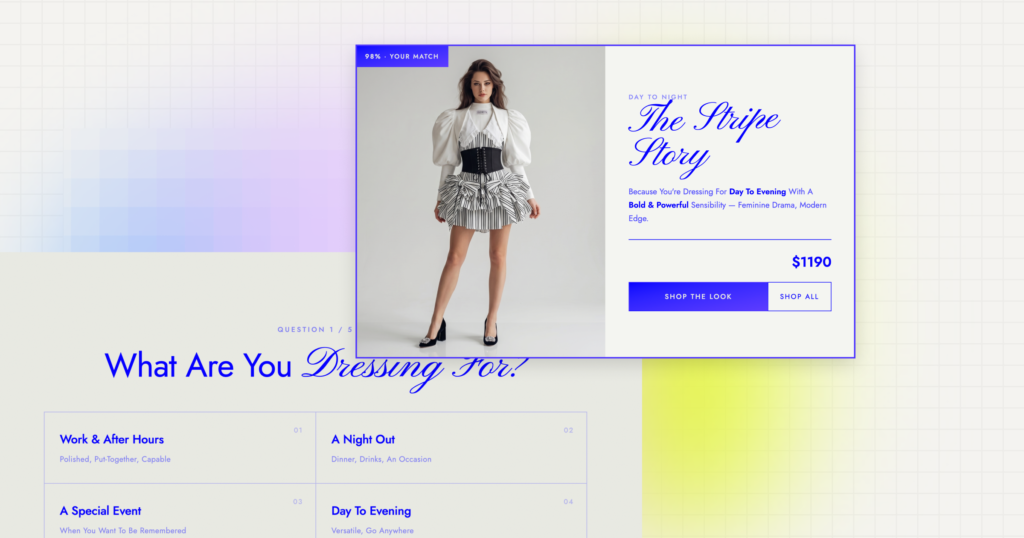
A product recommendation quiz
Product pages tell visitors what you sell. A quiz tells them what to buy.
Build a recommendation quiz from your public WooCommerce catalog. Visitors answer a few questions about what they’re looking for and get matched to the right products. Because it’s connected to your live catalog, it stays current as products change — no maintenance required.
It works as a public-facing tool: visitors can take it without logging in, which makes it easy to embed or link to from your existing site.
Starter prompt: “Connect my WordPress site and build a product recommendation quiz from my public catalog. Ask visitors a few questions about what they are looking for, then match their answers to the right products. Keep it public so anyone can take it without logging in.“
Built on WordPress, not inside it
WordPress plugins extend what WordPress does inside the admin. This is different. The tools you build in Sticklight live outside the WordPress admin but pull from your WordPress data directly.
That means the app you build can have its own layout and logic, designed around what your team actually needs, not around what the default admin panel can accommodate. Changes sync back in real time, so anything updated in your Sticklight tool shows up in WordPress immediately.
If you’ve ever thought “I wish WordPress had a better interface for this particular workflow,” that’s what the connector is for. Not working around WordPress. Building on top of it.
More Connectors to explore
The WordPress connector is part of a much bigger picture.
Sticklight now connects to a growing list of tools including Slack, Notion, Airtable, Discord, Linear, Calendly, and more — and there’s a lot more on the way.
Imagine describing exactly what you need and having it just work:
- Ask it to pull your latest Notion entries and use them as the foundation for what you’re building
- Surface open tickets from Linear or Jira without leaving your project
- Check a Calendly booking, update a Slack status, or sync data from Airtable — all from the same prompt box
Your data is already somewhere. Connectors mean you don’t have to move it, reformat it, or wire it up manually. You just build. See all Connectors available now.
Start building
Your WordPress site has more in it than most tools know what to do with. If you’ve had a tool or dashboard in your head that felt like too much work to actually build, this is the unlock. Start your next project and connect it to WordPress. It comes together faster than you’d expect.
Frequently Asked Questions (FAQs)
- What do connectors do? Connectors plug your favorite apps directly into Sticklight. They let your app securely read, write, and sync live data with external tools without you having to write any code to link them together.
- Do I need to install a separate plugin on my WordPress site to use the connector? Sticklight installs a small app inside your WordPress installation as part of the connection process. This is what allows Sticklight to interact with your site on behalf of your visitors in a secure way, respecting the permissions you’ve already set in WordPress. You approve it through an authorization window inside WordPress; no manual installation required on your end.
- What WordPress data can Sticklight read and write? Once connected, Sticklight can read posts, pages, media, and WooCommerce data including products, orders, and stock levels. It can also write back: updating prices, adjusting stock, changing order status, and publishing or scheduling content. You control exactly what Sticklight can do — from your permissions settings you can enable or disable read, write, update, and delete access at any time. WordPress stays the source of truth throughout. For the full list of supported resources and endpoints, see the WordPress connector documentation.
- Do I need to set up separate user accounts for the apps I build? No. Apps built on the WordPress connector use your existing WordPress users and roles. After you publish, only users from your connected site can sign in. Admins see everything; other roles see what they’re already permitted to see in WordPress.
- What happens if my WordPress connection expires? Connectors stay active until you disconnect them or WordPress revokes access. If access is revoked, Sticklight prompts you to re-authenticate. Your app picks up where it left off.
