
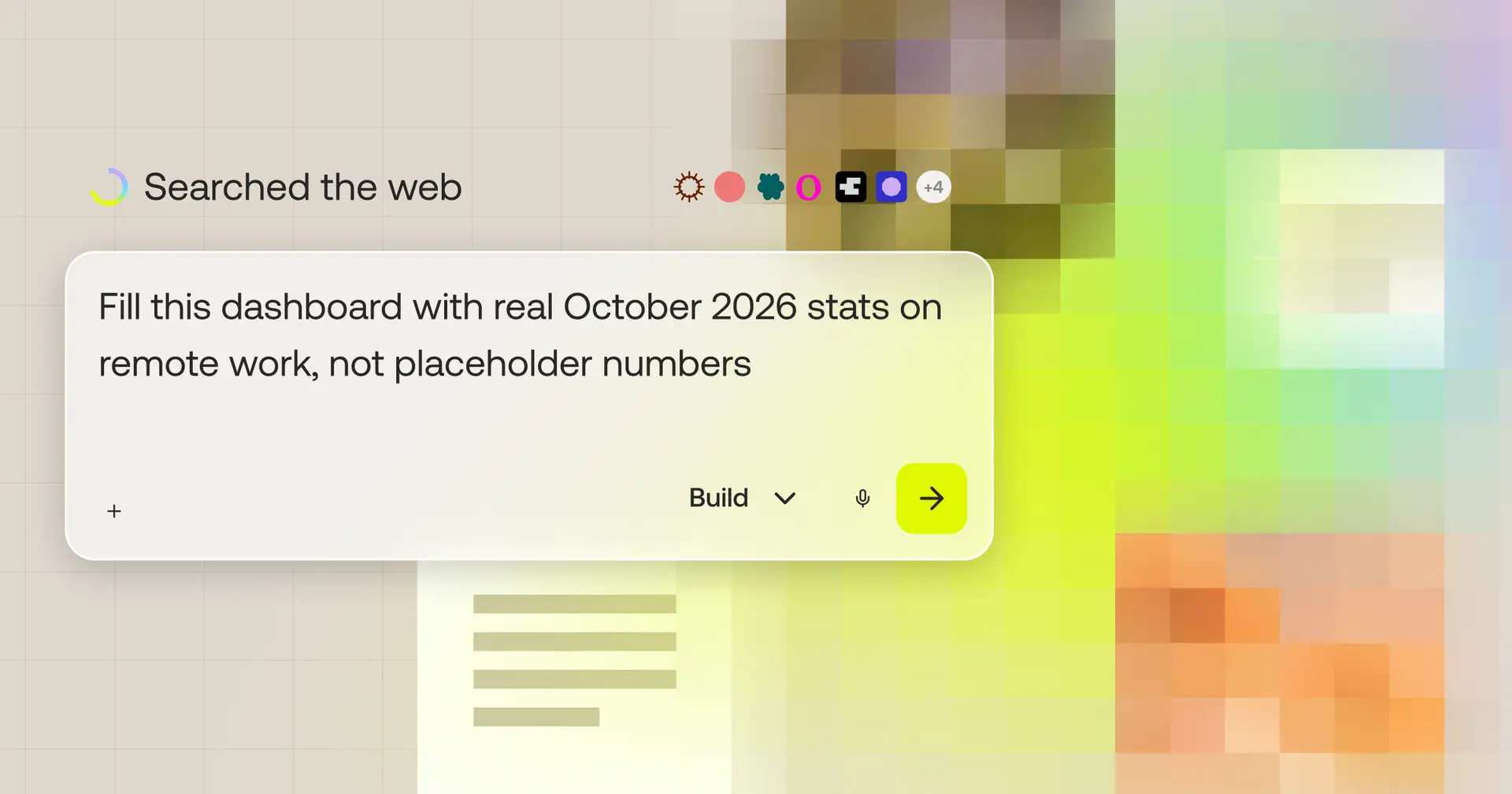
New in Sticklight: an AI app builder with live web search

You ask your AI builder to connect a payment form, and it writes code for an API version that changed three months ago. You ask for a pricing comparison for a client pitch, and the numbers are last year’s. The answer sounds confident. It’s just out of date.
That’s the gap an AI app builder with web search closes. Sticklight can now look things up on the live web while it works, bring back what’s true today, and show you exactly where each fact came from.
Until now, the fix was on you. You’d stop, open three browser tabs, hunt through GitHub threads or developer docs, and paste the right details back into your prompt. Every outdated answer cost you speed, focus, and flow.
Building with static AI knowledge is like navigating a new city with a map printed three years ago. The major roads look right, but you keep driving into closed streets and shifted exits. Web search hands Sticklight today’s map.
Why do AI app builders give outdated answers?
Large language models learn from a snapshot of the internet, a picture in time. Once training ends, their knowledge stops with it. Anything that changed since then is invisible to them: new documentation, new prices, new rules, this week’s news.
That’s a blind spot every AI app builder shares. It isn’t a bug in one tool. It’s how the underlying models work.
For quick experiments, the gap rarely matters. For client work, it does. A wrong fact in a project you deliver costs more than a fix. It costs credibility.
How to use web search in Sticklight
There’s no button to press and nothing to set up. Ask in the Chat panel the way you normally would. When your question needs current information, Sticklight searches the web before it answers.
Web search works in Build, Ask, and Plan modes. So Sticklight can research while you plan a feature, while it answers a question, and while it builds.
What you’ll see when Sticklight searches
When Sticklight goes to the web, the answer shows its work. Here’s what appears in the chat:
- A “Searching the web” status while Sticklight looks things up.
- Up to six source icons next to the answer, each linking to a page it used.
- Expandable details with what Sticklight was looking for, the searches it ran, and the full list of sources, each with its title and domain.
- Links that open in a new tab, so you can check a source without leaving your project.
How to make sure Sticklight searches the web
Sticklight decides when a question needs fresh information. If it already has reliable information, it may answer without searching. When you want to be certain, ask for it directly in your message:
“Search the web for the latest version of this documentation before you change anything.”
Read the full details in the web search help article.
What can you build with an AI app builder that searches the web?
The best use cases share one thing: the answer depends on what’s true right now. Here are five ways to put live web search to work in your builds.
1. Check your app against today’s standards
Web standards, framework conventions, and compliance rules shift constantly. Instead of scrolling through GitHub issues, X threads, or Discord channels to see if your build is current, ask Sticklight to check for you.
Try: “Search the web to check if our auth flow meets the latest security guidelines for SaaS apps.”
2. Connect APIs with the latest documentation
API providers ship new versions, rename parameters, and retire endpoints all the time. Ask Sticklight to pull the current docs before it writes an integration, so you don’t hit deprecation warnings or broken endpoints after launch.
Try: “Look up the latest Stripe API syntax for webhooks and update our checkout handler.”
3. Bring current market data into your pages
Pricing tables, market trends, and competitor features change all the time. Ask Sticklight to research live data and lay it out directly in your UI.
Try: “Look up current pricing tiers for the top 3 booking tools in [industry] and build a comparison grid for my landing page.”
4. Research a client’s industry before you build
Starting a project in a field you don’t know well? Use Plan mode to get up to speed first. Sticklight can research how others in that space present their services, what visitors expect, and which rules might apply, then turn it into a plan you review before anything gets built.
Try (in Plan mode): “Research how physiotherapy clinics in the UK handle online booking, including any privacy requirements, and plan a site structure for my client.”
5. Fact-check the content on your pages
Statistics, dates, and claims in your copy age quickly. A stat that was accurate at launch can be wrong by the time your client shares the site. Ask Sticklight to verify them before you publish or hand over.
Try: “Check the statistics on our About page against current sources and flag anything outdated.”
How to check where Sticklight’s answers come from
An answer you can’t check is an answer you have to trust blindly. That’s not good enough for work you put your name on.
Every web-backed answer in Sticklight links to its sources. You see each page’s title and domain, and you can open any of them in a new tab. If a fact matters for a client deliverable, check it against the official source, the same way you’d check any research.
Think of Sticklight as a research partner who always brings receipts. You lead. Sticklight looks things up and shows its work.
When to use Connectors, Integrations, or MCP instead of web search
Web search is built for public information on the open web. For everything else, Sticklight has a better tool for the job:
| What you need | Best tool in Sticklight | How it works |
|---|---|---|
| Current public information, like docs, standards, or prices | Web search | Ask in the Chat panel. Sticklight searches and links every source. |
| Your project’s own files | Nothing extra | Sticklight already reads these automatically. |
| Errors in your project | Sandbox logs or browser console | The logs show the exact error, which web search can’t see. |
| Your data in tools like Slack, Notion, or Airtable | Connector | Authenticate once and build with your real data. |
| Analytics or marketing tools on your site | Integration | Add it from the Tools panel with your API key. |
| One specific page | Paste it into the chat | Sticklight works from the exact content you give it. |
| Private or paywalled content | Paste it into the chat | Web search only reads publicly available pages. |
| Building from Claude, ChatGPT, or Cursor | Sticklight MCP | Create, edit, and publish projects without leaving that conversation. |
The short version: web search for what’s public and current, Connectors for what’s yours, and MCP when you’d rather build from another AI assistant.
Start building with today’s facts
Your builds are only as good as the information behind them. With web search, Sticklight works from what’s true today, whether that’s a standard, an API, a price, or a stat in your copy. And you can see where every piece came from.
Less tab-switching, fewer surprises at handoff, more time spent building. Open your next project in Sticklight and ask a question that depends on today. Then click a source and see for yourself.
FAQs
Do I need to turn on web search in Sticklight?
No. Web search has no setting or button. Sticklight decides when a question needs current information and searches automatically, in Build, Ask, and Plan modes. If you want to be sure it searches, ask for it directly in your message, for example: “Search the web for the latest documentation before you answer.”
How do I know where Sticklight’s information came from?
Every answer that uses web search shows up to six source icons that link to the pages Sticklight used. Expand the details to see what it was looking for, the searches it ran, and the full source list with each page’s title and domain. Sources open in a new tab, so your project stays open.
Can Sticklight read paywalled or private pages?
No. Web search only reads publicly available pages, so content behind a login, paywall, or private workspace is out of reach. For a specific page you already have access to, paste the relevant content into the chat. For your data in tools like Notion or Airtable, use a Connector instead.
Why didn’t Sticklight search the web for my question?
Sticklight searches when it decides current information would improve the answer. If it already has reliable information, it may answer without searching. To force a search, ask explicitly in your message, for example: “Search the web for this before answering.” Naming what you want checked, like a specific API or standard, also helps.
Which Sticklight modes support web search?
Web search works in Build, Ask, and Plan modes. In Plan and Ask, Sticklight can research before you commit to an approach. In Build, it can check current information while it writes your app. Web search isn’t available in Stylist mode, so switch modes when you need something looked up.
What’s the difference between web search and Connectors in Sticklight?
Web search reads public pages on the open web, like documentation, standards, and pricing pages. Connectors link Sticklight to your own tools, such as Slack, Notion, or Airtable, so it can build with your real data. Use web search for what’s public and current, and a Connector for what belongs to you or your team.
Can I use Sticklight’s web search to fact-check my content?
Yes. Ask Sticklight to check the statistics, dates, or claims on a page against current sources before you publish or hand a project to a client. It returns what it found with linked sources, so you can confirm each correction yourself and decide what to change. For critical facts, always check the official source.
